
History
Find a request you sent, filter failures and slow calls, and repeat or reopen an exchange.
Schemo records every exchange: requests you send, requests a collection run sends, captures from the browser, and calls made by an MCP agent. Open History in the sidebar or press Cmd/Ctrl + Y. The status bar shows how many records the workspace keeps.
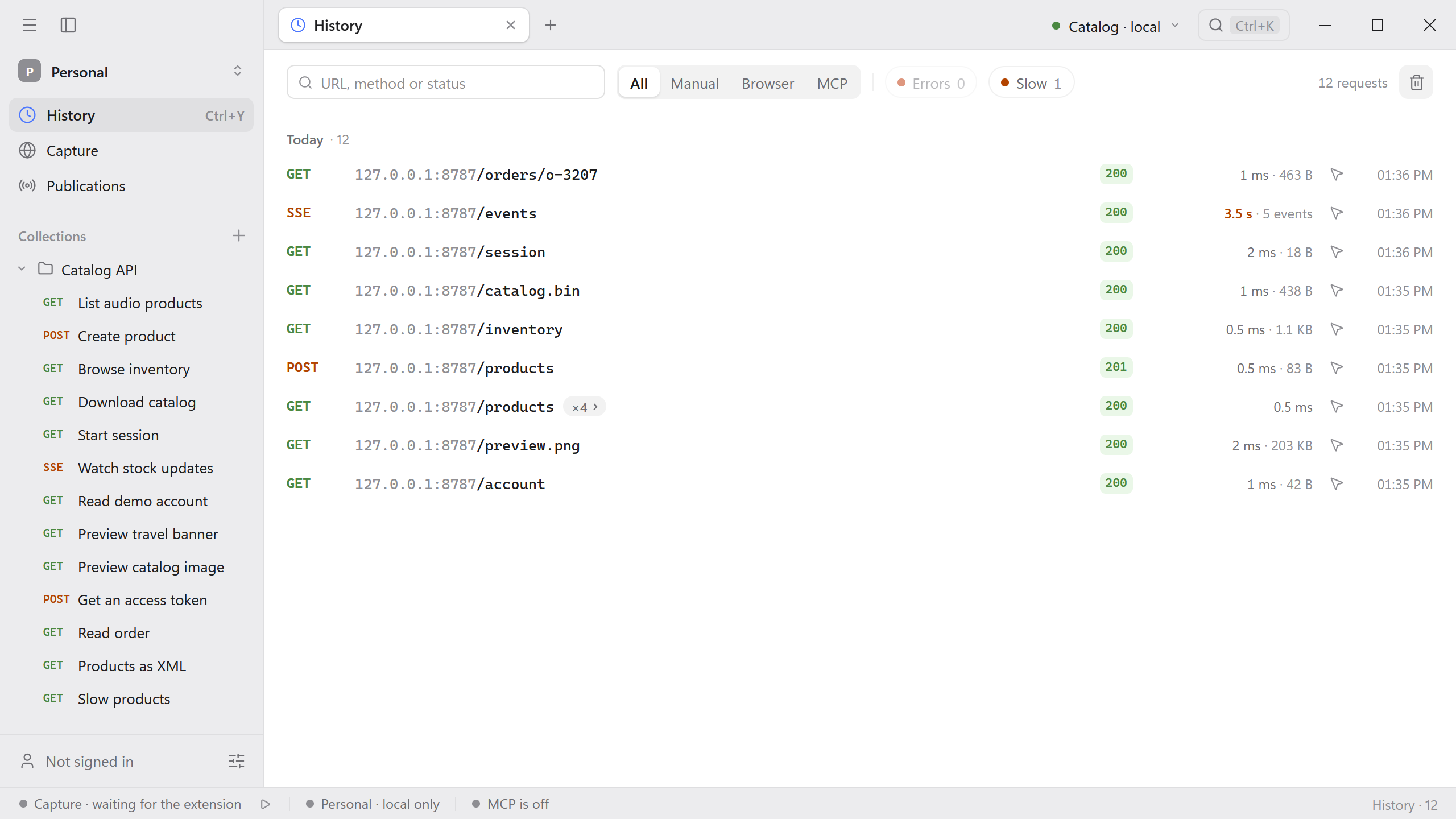
Find requests
Type part of a URL, a method, or a status code in the filter field. Records are grouped by day, newest first.
| Filter | Shows |
|---|---|
| All | Every record. |
| Manual | Requests you sent from a request tab or a collection run. |
| Browser | Requests captured from the browser with Schemo Bridge. |
| MCP | Requests sent by an MCP agent, labeled with the agent’s name. |
| Errors | Responses with a 4xx or 5xx status. |
| Slow | Exchanges that took one second or longer. |
Errors and Slow show how many records match and combine with the other filters. When the same request ran several times in a row, History collapses the repeats into one row marked ×3. Select the mark to show every run.
Try it with the Catalog API: send GET {{baseUrl}}/slow, which waits one and a half seconds, then select Slow.
Replay a request
Select a record to open it in a tab. The request appears above the response as it was sent, and the response pane shows the body, headers, and timings as they were recorded. A request captured from the browser has a Request tab in the response pane instead.
- Use the send icon on a row, or Repeat in the record, to send the same request again.
- Use Open in Request to copy the exchange into an editable request tab, change it, and send it.
- A request tab’s context menu offers Show in history to jump to the records of that request.
Clear the history
While Schemo Bridge is connected, History shows a Recording line for browser capture. Use it to pause or resume capture without leaving the page.
The delete icon offers three choices: The shown requests removes the records that match the current filters, Yesterday and older keeps today’s records, and The whole history removes everything in the workspace, bodies included.
To limit how long records are kept, choose 7 days, 30 days, or Forever under Settings → Requests → History. See Local data and credentials for where the history is stored.
Import and export
To bring in collections from other tools or share them as files, see Import and export.