
Import and export
Bring in Postman, Insomnia, OpenAPI, HAR, and cURL, and share collections as files or commands.
Open Import with Cmd/Ctrl + O, from the command palette, or from File → Import… in the app menu. To import into an existing collection, open the collection’s menu in the sidebar and choose Import into the collection….
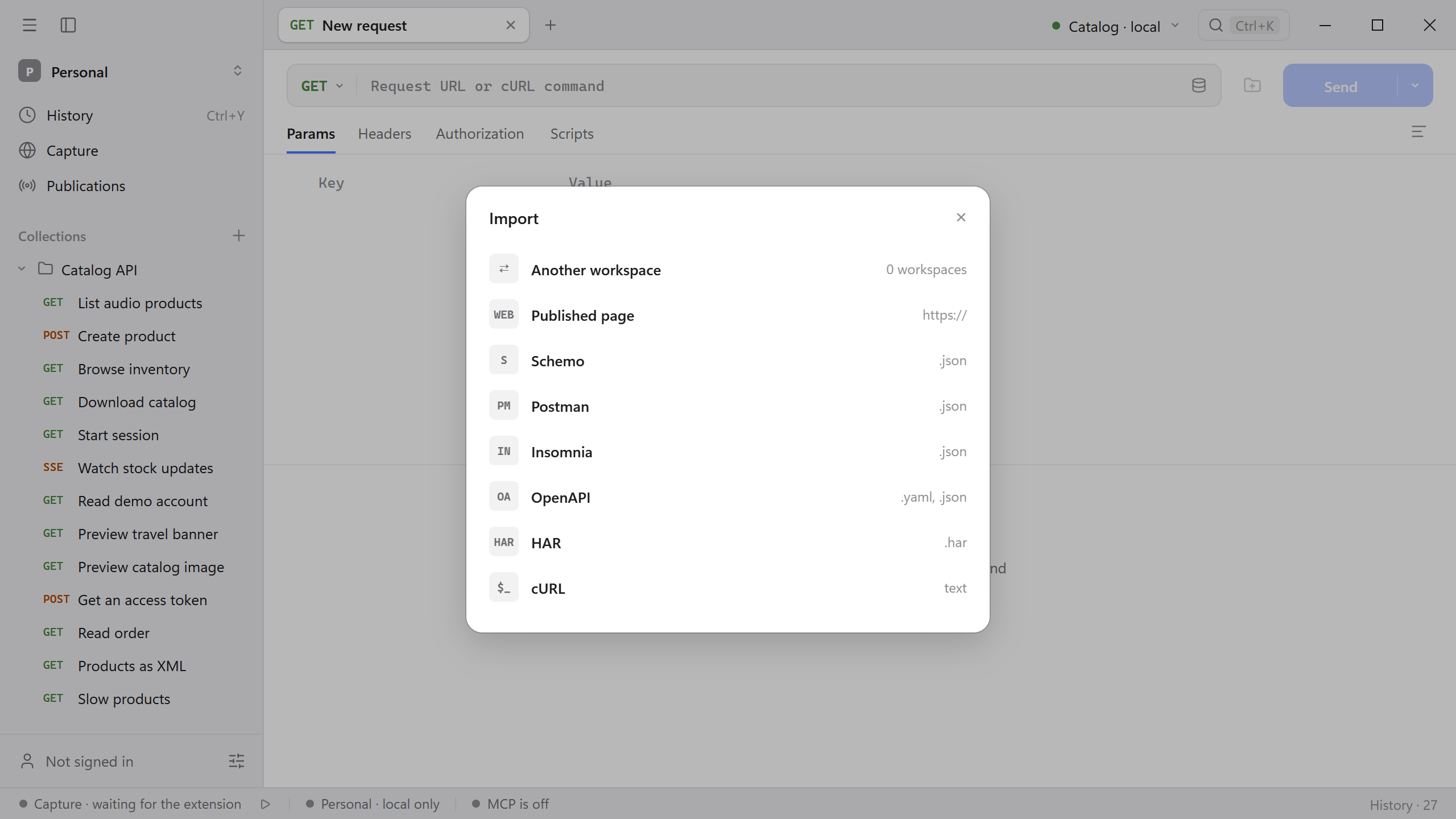
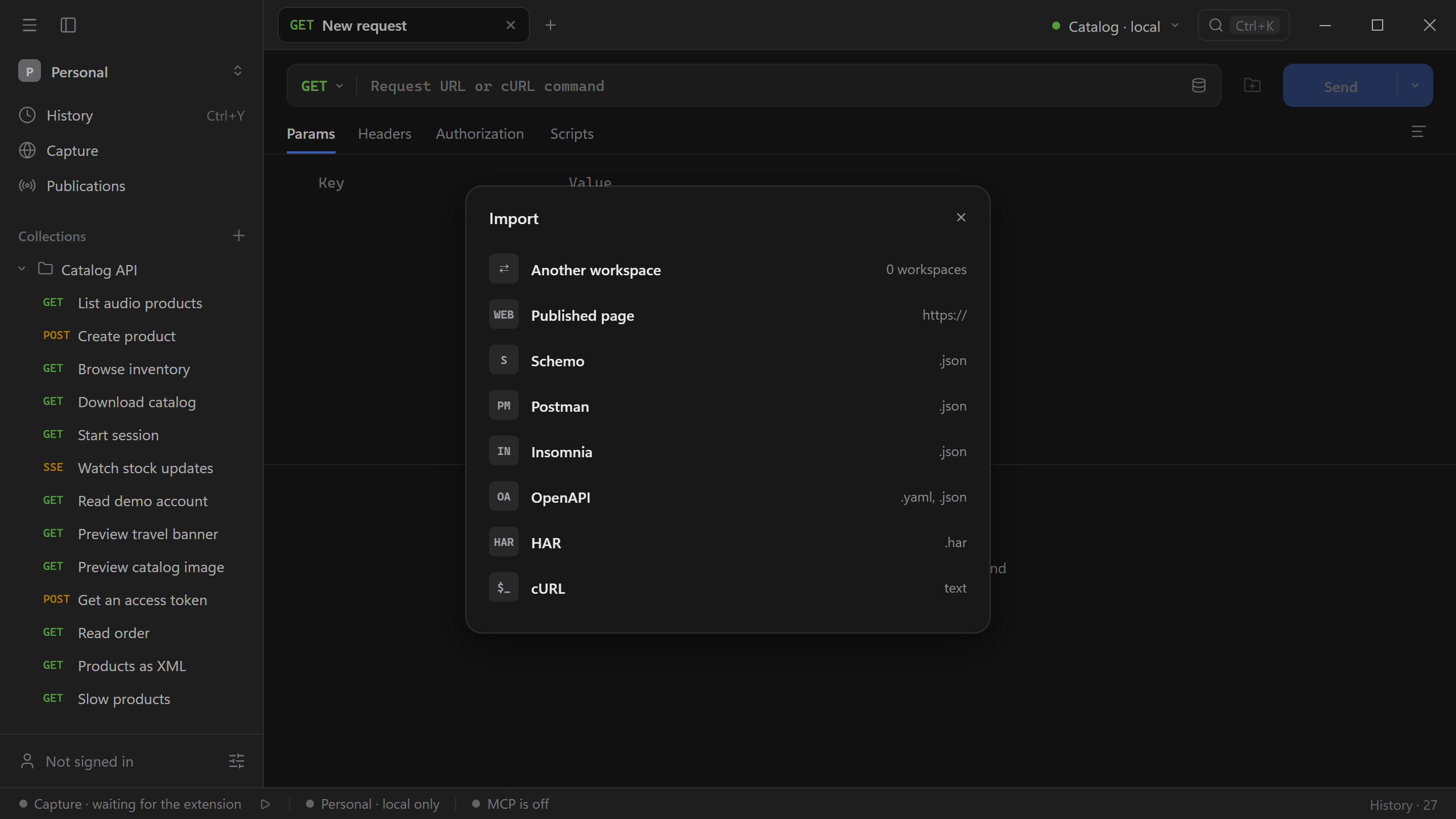
Choose a source
| Source | What it reads |
|---|---|
| Another workspace | Copies collections from one of your other workspaces. |
| Published page | A collection someone published with Schemo Cloud. Paste the page address. |
| Schemo | A Schemo collection export or a workspace backup (.json). |
| Postman | A collection in format v2.0 or v2.1 (.json). See Migrate from Postman. |
| Insomnia | An Insomnia v4 export (.json). |
| OpenAPI | Swagger 2.0, OpenAPI 3.0, or 3.1 (.yaml or .json). Each operation becomes a request. |
| HAR | A recording from browser DevTools, Charles, or Proxyman (.har). |
| cURL | One or more curl commands pasted as text. |
For a file source, drag the file into the dialog or choose it. OpenAPI and other file sources also accept By link: paste the address of the document and press Enter.
Import destination
Where offers a new collection named after the source, or one of the collections in the active workspace. When a file holds several collections, Schemo can import them As separate collections. The import button shows how many requests will be added.
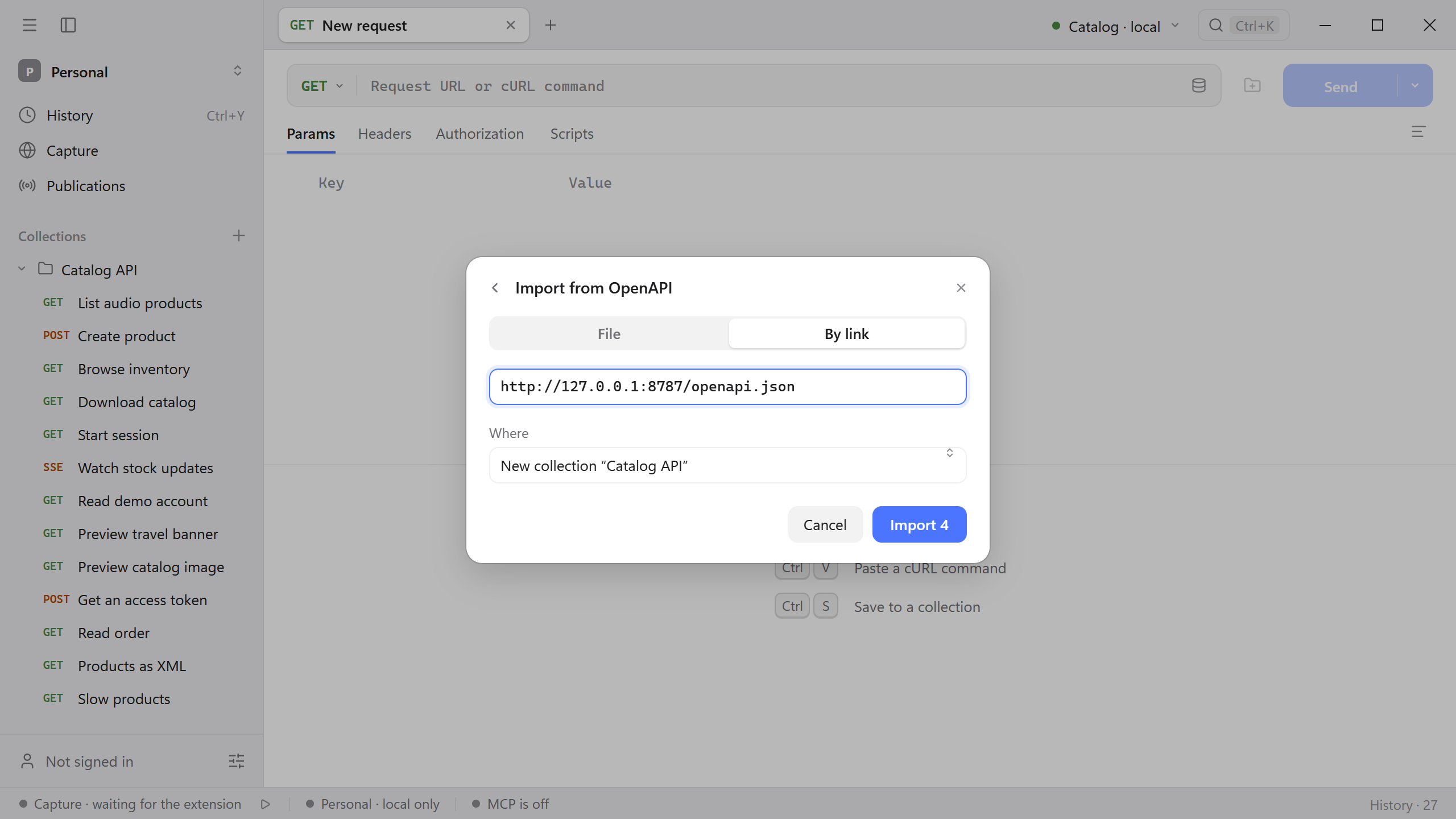
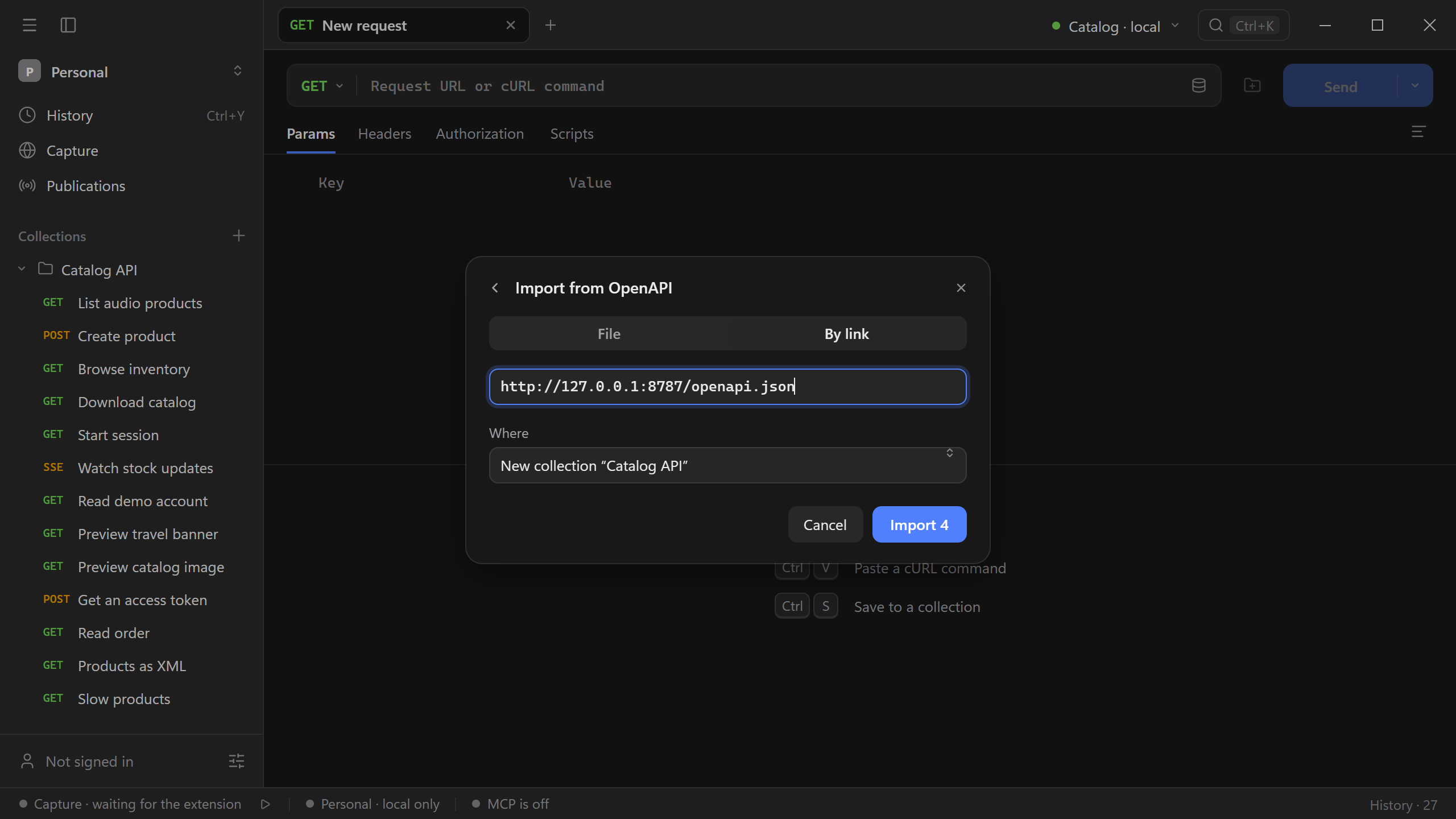
Try it with the Catalog API: choose OpenAPI → By link and enter http://127.0.0.1:8787/openapi.json. Schemo reads the four operations and offers a new Catalog API collection.
Follow Start a collection from an OpenAPI URL to run an imported operation.
After importing, check the active environment, authorization, and any file fields before you send the requests. Paths from another machine and redacted secrets do not come with the file.
Paste cURL
You do not need the dialog for one request. Paste a curl command into the address field of a request tab and Schemo fills in the method, query parameters, headers, and body. See Import a cURL request.
Export a collection
Open the collection’s menu and choose Export, or press Cmd/Ctrl + Shift + E.
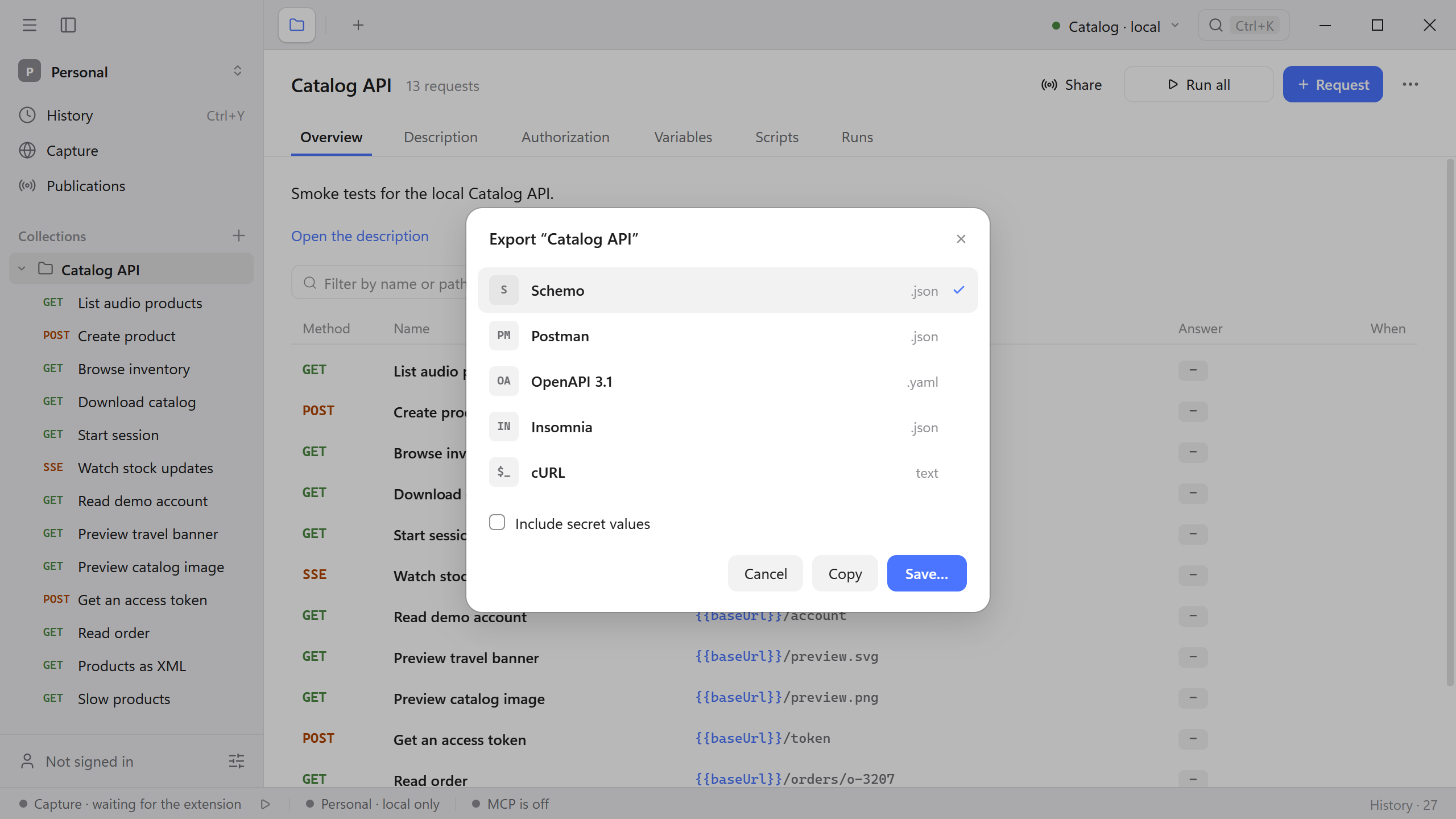
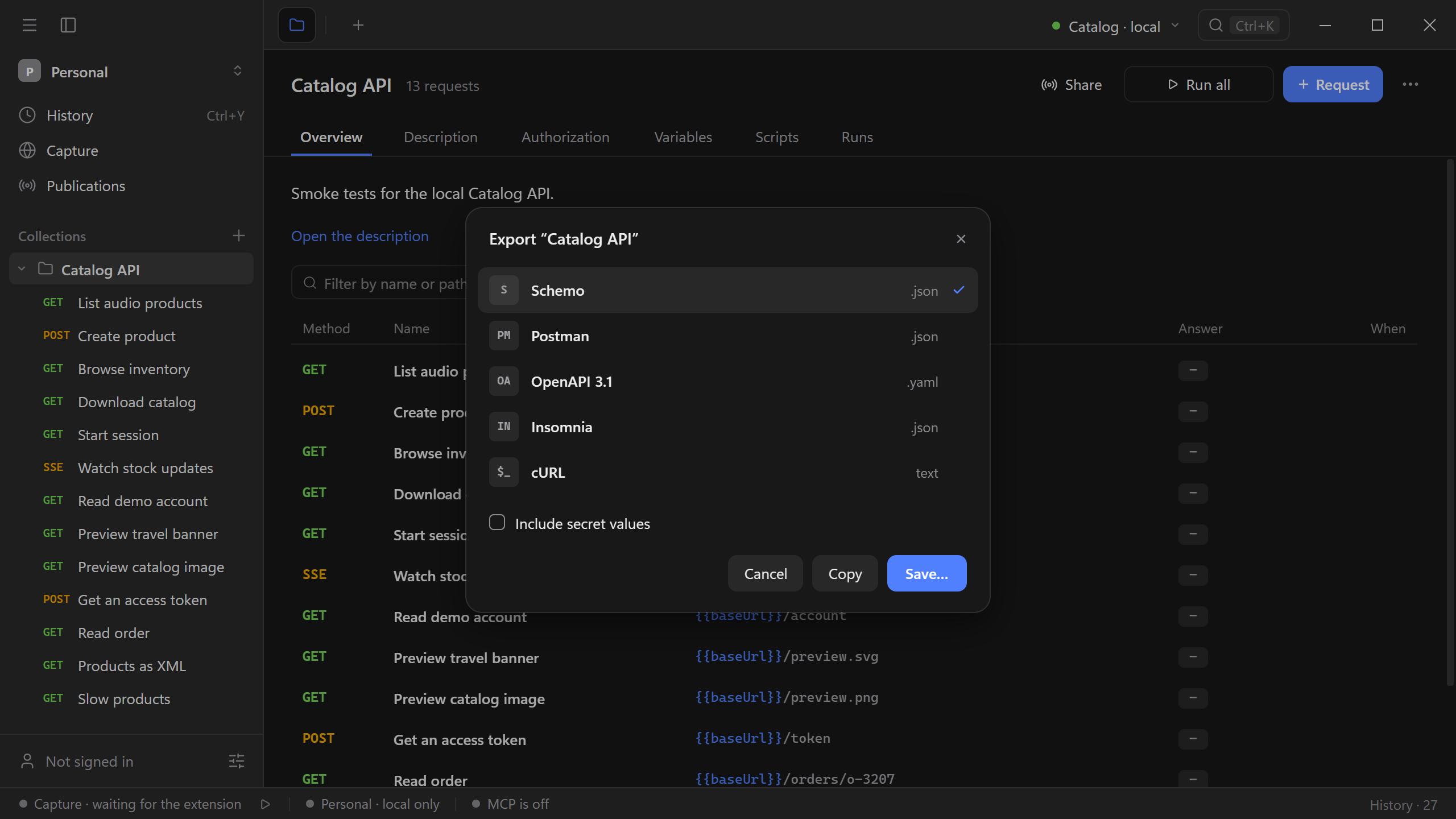
| Format | Use it to |
|---|---|
Schemo (.json) | Keep everything Schemo stores: scripts, examples, descriptions, and other protocols. |
Postman (.json) | Open the collection in Postman. |
OpenAPI 3.1 (.yaml) | Describe the API for other tools. |
Insomnia (.json) | Open the collection in Insomnia. |
| cURL (text) | Get one command per request. |
Choose Copy to put the export on the clipboard or Save… to write a file. Secret values are left out unless you select Include secret values. Review a file that includes secrets before you share it.
Copy one request
Open the menu on the arrow beside Send to copy the link or the request as cURL, fetch (JS), wget, HTTPie, or PowerShell. In the sidebar, a request’s menu also offers Copy as cURL and Copy the address.
Schemo tells you when a copy is incomplete: a variable with no value is left as written, an OAuth token that has not been obtained is not fetched, and Digest credentials and file uploads are not written out.
Import .env
Open the environment menu in the header and choose Edit variables….
Select an environment, or select Globals to make the values available across the workspace.
Choose Import .env → Choose file…. Save these lines in a
.envfile to try the import with the Catalog API.baseUrl=http://127.0.0.1:8787 API_KEY=catalog-demo
Schemo replaces matching keys in the selected scope and keeps the other variables. Full-line comments are skipped. Names containing TOKEN, SECRET, PASSWORD, KEY, or AUTH are imported as secrets. After importing into a named environment, select it in the header to use its values.
To verify the import, send GET {{baseUrl}}/account with the header X-API-Key: {{API_KEY}}. The Catalog API returns 200 OK. See Variables and environment overrides for how Schemo resolves both values.