Request tabs and command palette
Keep requests open, find saved work, and jump to commands.
A request opened from the collection tree can start in a preview tab. Open another request to reuse that preview, or double-click the tab to keep it open. Use Pin tab from the tab context menu for requests you come back to throughout a session.
Switch tabs
- Use + in the tab strip for a new tab.
- Drag tabs to reorder them. Use Duplicate to create an editable copy, and Reveal in sidebar to find a saved request in its collection.
- Use Close other tabs or Close tabs to the right to clean up a session.
- Press Ctrl + Tab or Ctrl + Shift + Tab to cycle through recent tabs. When tabs overflow the strip, open All tabs and type into Find an open tab.
- Use Settings → General → Restore tabs to restore tabs after restarting, including their order and pinned state.
Command palette
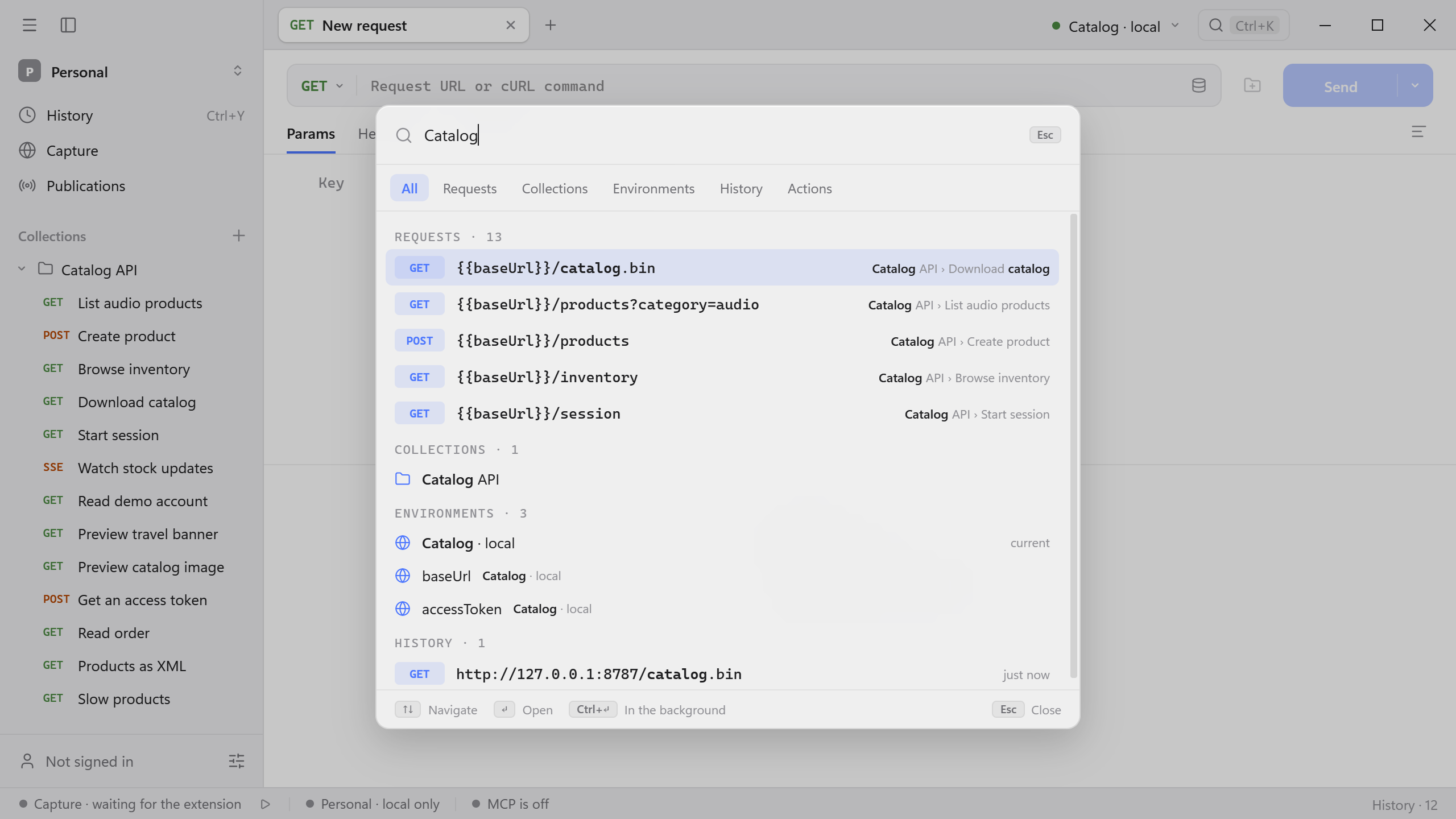
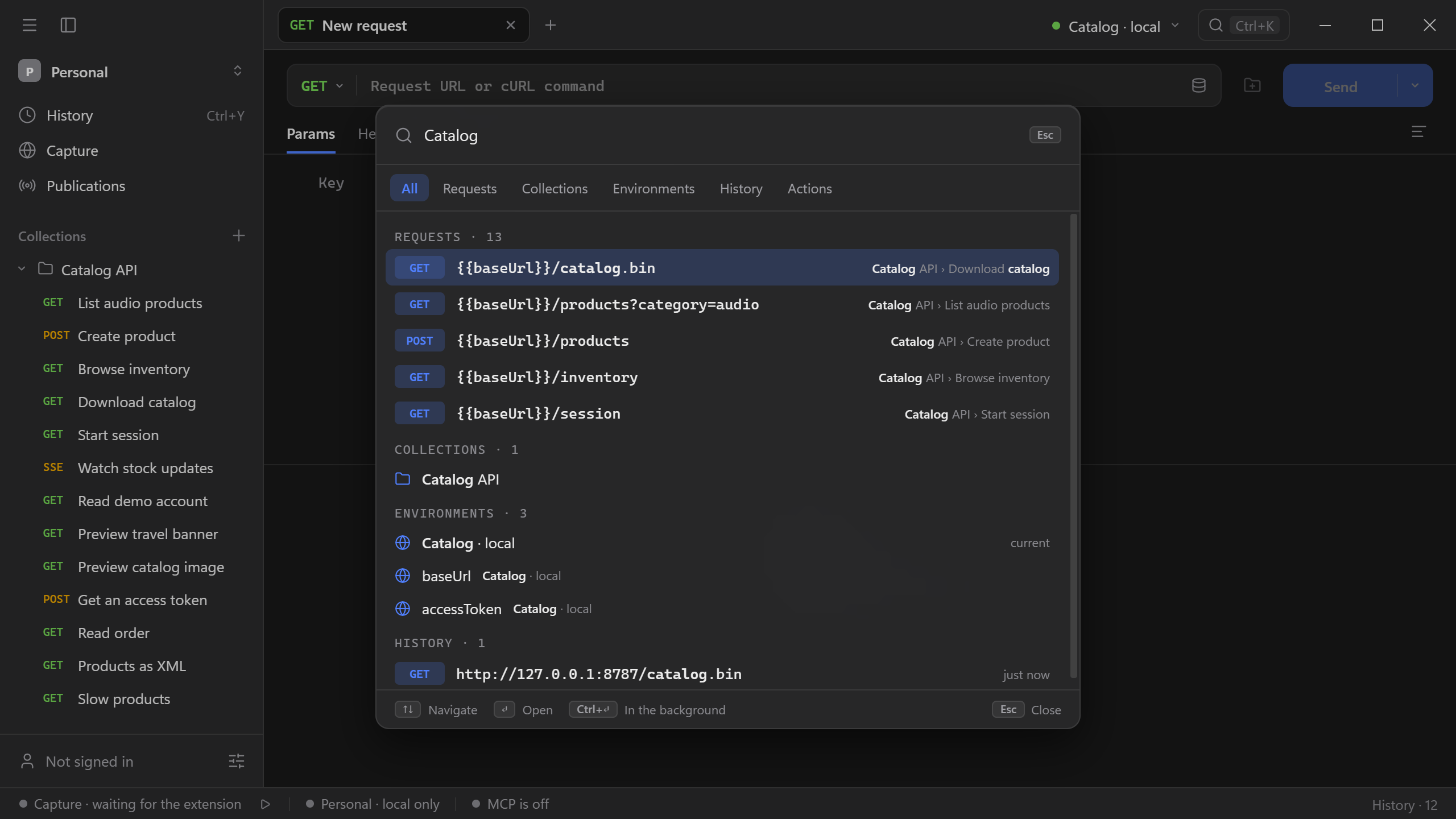
Open the command palette with Cmd/Ctrl + K. Search for a saved request, a collection or a previous exchange. Use the filters to narrow results, then use the arrow keys and Enter to open the highlighted item. The palette also exposes app commands such as opening settings and creating a request.
Use Cmd/Ctrl + Enter on a matching request or collection to open it in the background and keep your current tab in view.
See Keyboard shortcuts for defaults and reassignment. When testing the Catalog API, name the collection Catalog API and search for Catalog to find the saved collection again.