
Variables and environment overrides
Resolve reusable values, pin environments, and handle missing variables.
Write a variable as {{name}}. Use it in addresses, query values, headers, authorization fields, and compatible request bodies. For example, {{baseUrl}}/products keeps the host in the environment.
Pick the scope
- Use Globals for values shared by the workspace.
- Put values shared by a collection or folder in its Variables tab.
- Use a named environment for hostnames and credentials that change across API instances. Select Secret for values that should appear masked in supported previews.
When several scopes define the same enabled name, Schemo uses the selected environment first, then Globals, then the collection or folder. For example, a collection can provide a default baseUrl, and the selected environment can override it.
Check a value
Hover over a {{variable}} token to see its resolved value. A secret shows only that it is hidden. Option/Alt + click the token to open the variable in its editor.
Missing variables
A variable that no scope defines is shown in red, and a warning icon appears at the end of the address bar. Select the icon to list the missing variables and where each one is used: the path, the query, a header, the body, or authorization.
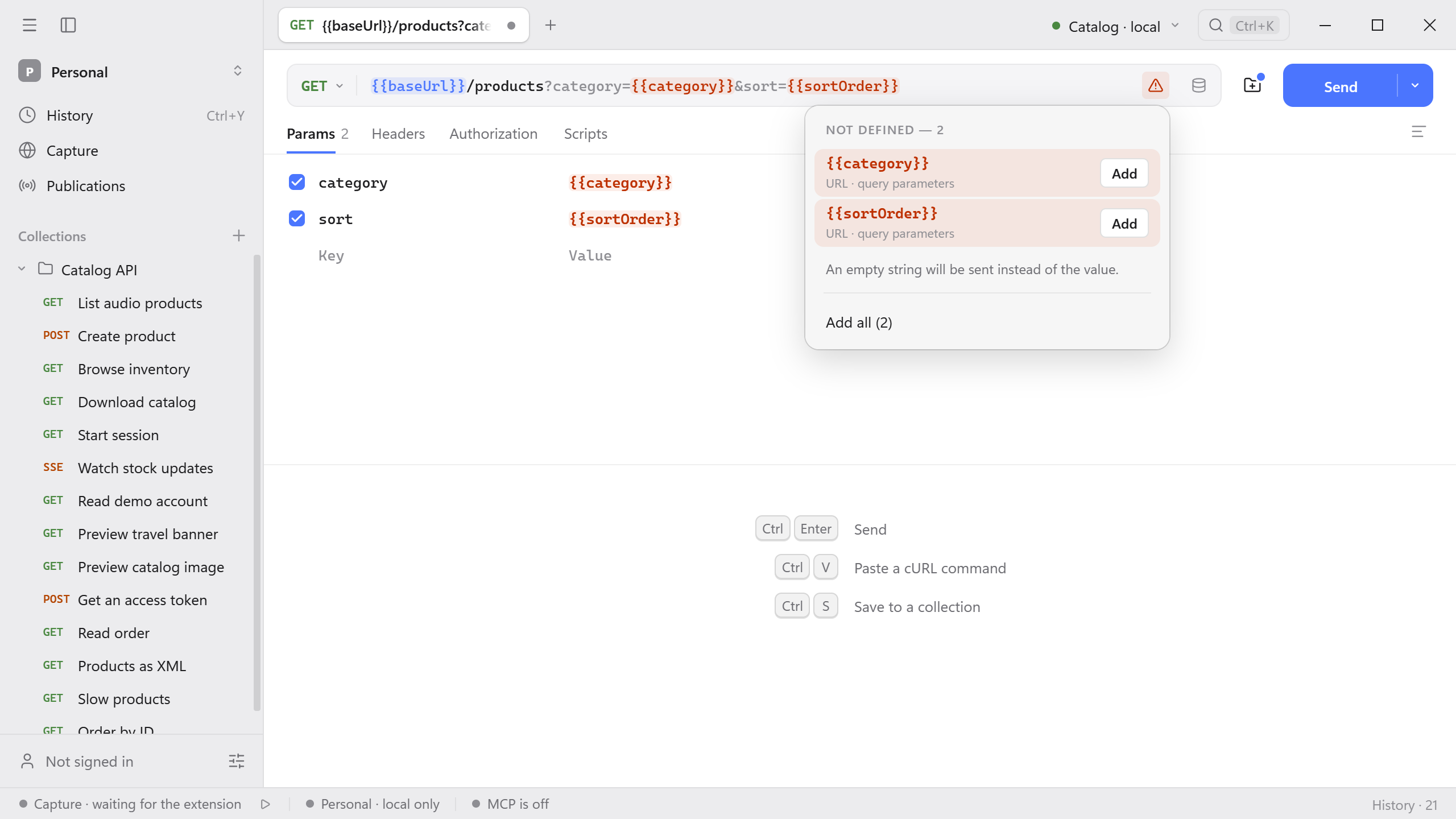
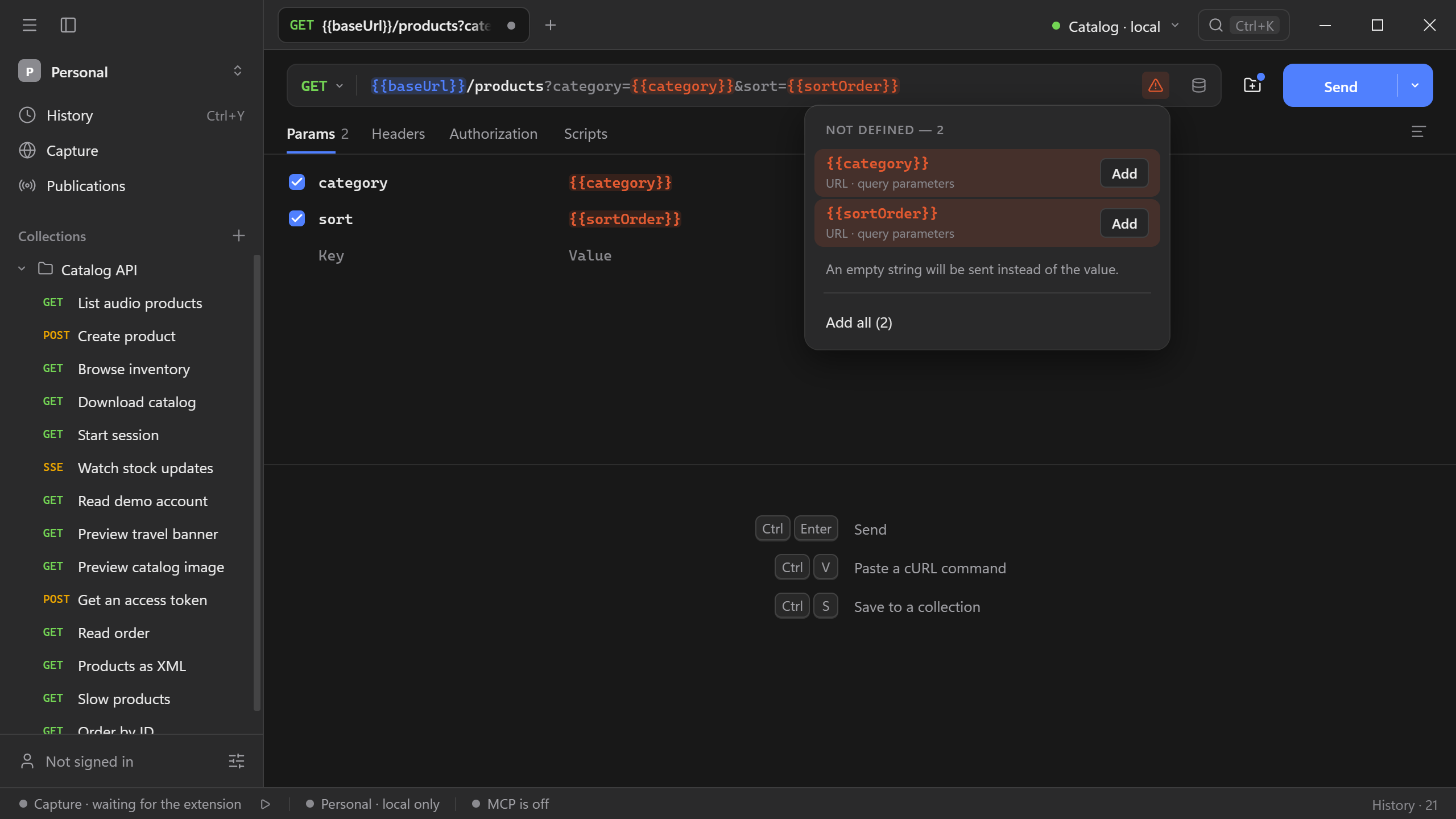
Select Add to create the variable in the current environment, or Add all for every missing one. Choose an environment in the title bar first. Until a variable is defined, Schemo sends an empty string in its place. If a variable you expected is listed, check its spelling, scope, and whether its row is enabled.
Pin an environment
Use the environment control in the request bar to choose an environment for that request. The rest of the workspace keeps its current selection. To make the request follow the workspace again, clear the pin.
In the environment editor, you can create an environment based on another one. The new environment copies the variable definitions and regular values. Fill in its secret values separately. Use the access control to make a stable environment read-only.