
Browser capture
Capture the requests a web page makes in your browser, inspect them, and send them again from Schemo.
Schemo Bridge is a browser extension that forwards the requests of the tabs you choose to the desktop app on the same computer. Use it to see exactly what a site sends, including headers and tokens, and to turn a real call into a request you can edit.
It works in Chrome, Edge, and Firefox 142 or later. Install it from the Chrome Web Store, Microsoft Edge Add-ons, or Firefox Add-ons. Run Schemo at least once before you turn capture on, so the browser can find the app.
Capture a tab
- Start Schemo and select Capture in the sidebar. Until a browser connects, the page shows the three steps below and Waiting for capture.
- Open the site in your browser, such as a local build, a staging site, or production.
- Select the Schemo mark in the browser’s toolbar to arm capture for that tab. The browser may ask for access to the site.
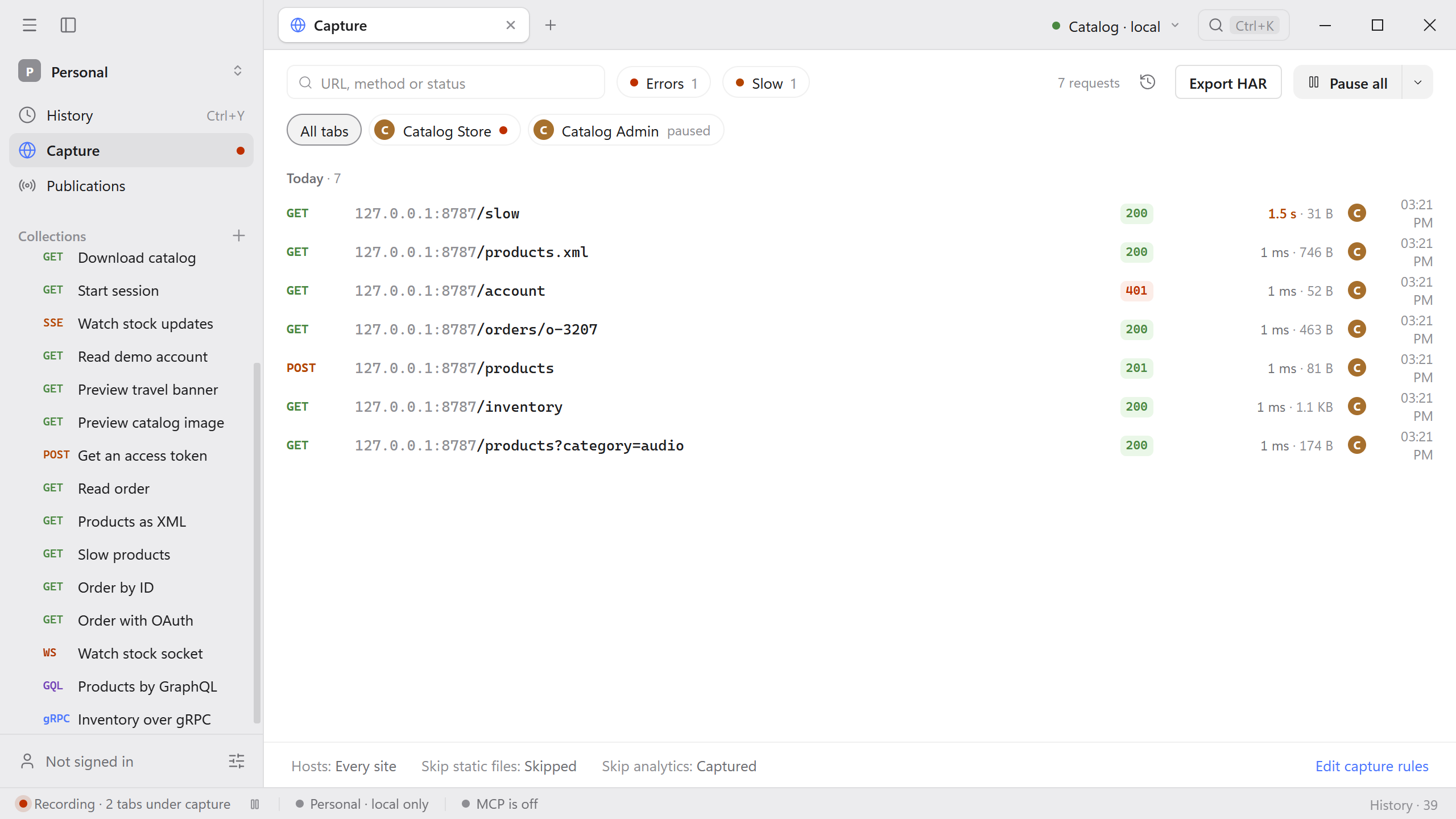
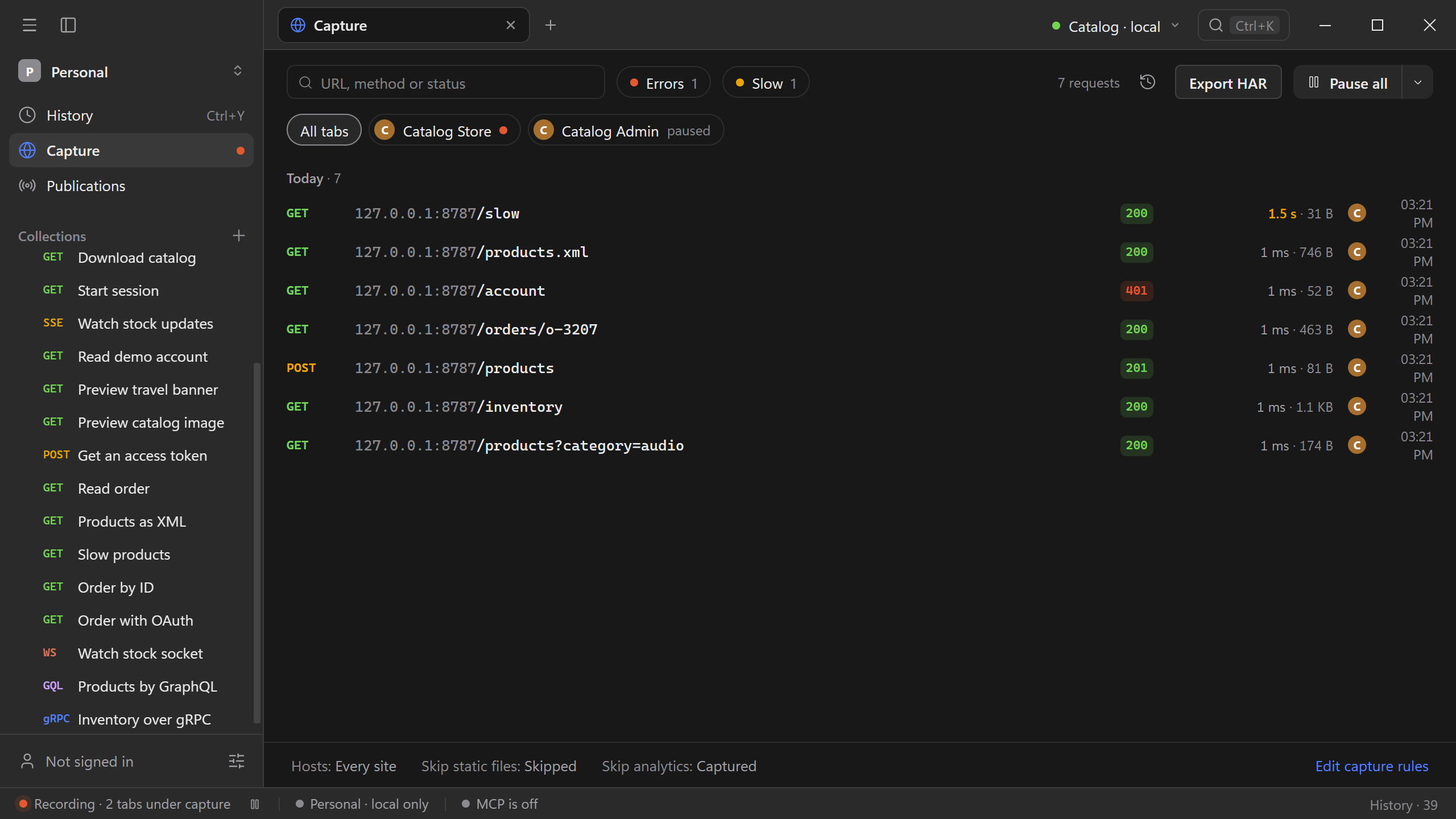
- Use the site. Each request the page makes appears in Capture, newest first.
The status bar shows Recording and the number of tabs under capture. Requests that repeat in a row are grouped; select the count to show them all.
Find a request
- Type in URL, method or status to filter the list.
- Select Errors to show only responses with status 400 or higher, or Slow for those that took a second or more.
- Select a tab chip, such as Catalog Store, to show only that tab’s requests. All tabs shows everything again.
- Select the history icon to open the same requests in History, where captured requests are kept with the ones you sent.
- Select Export HAR to save the requests as a HAR file.
Inspect a request
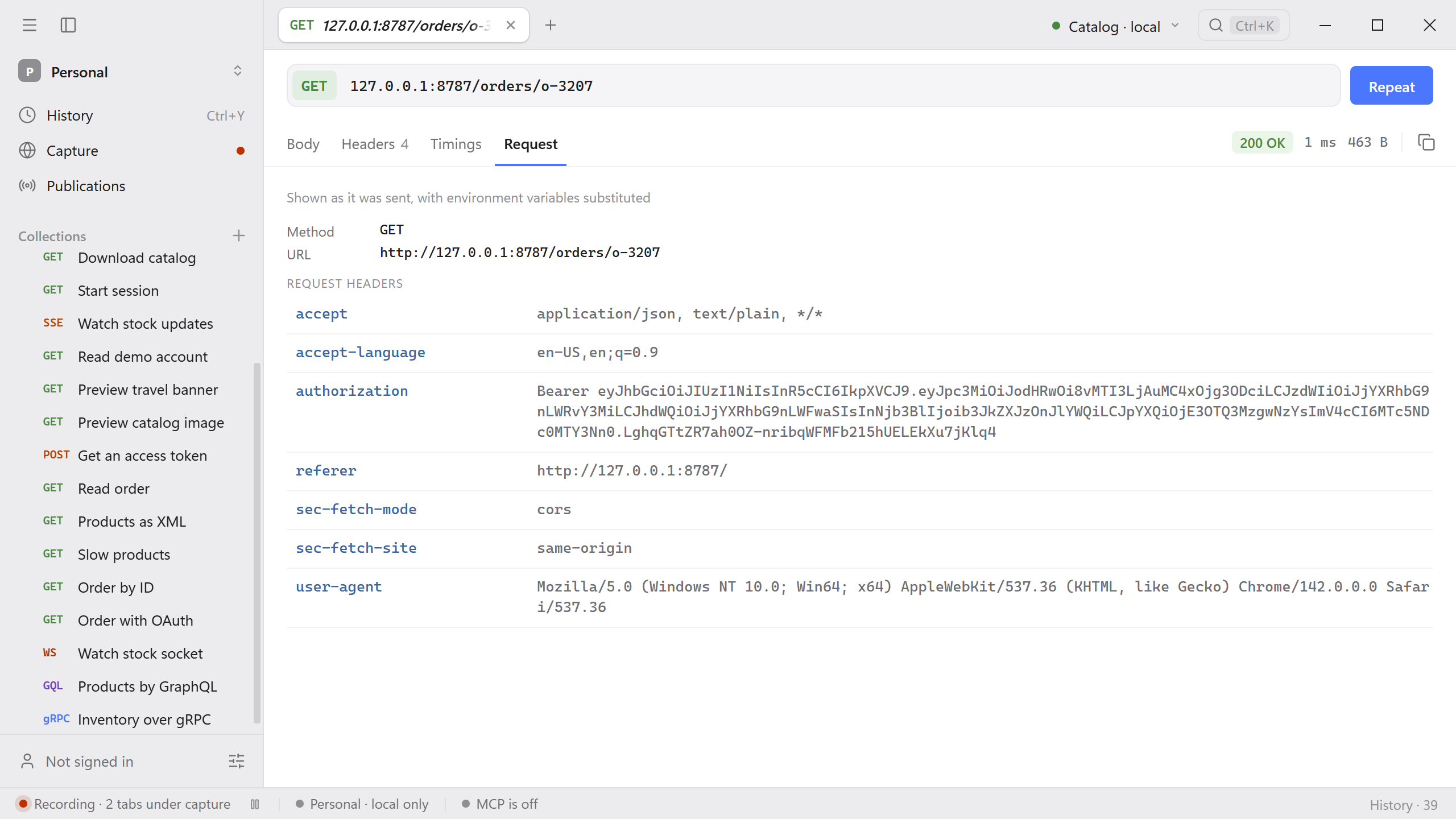
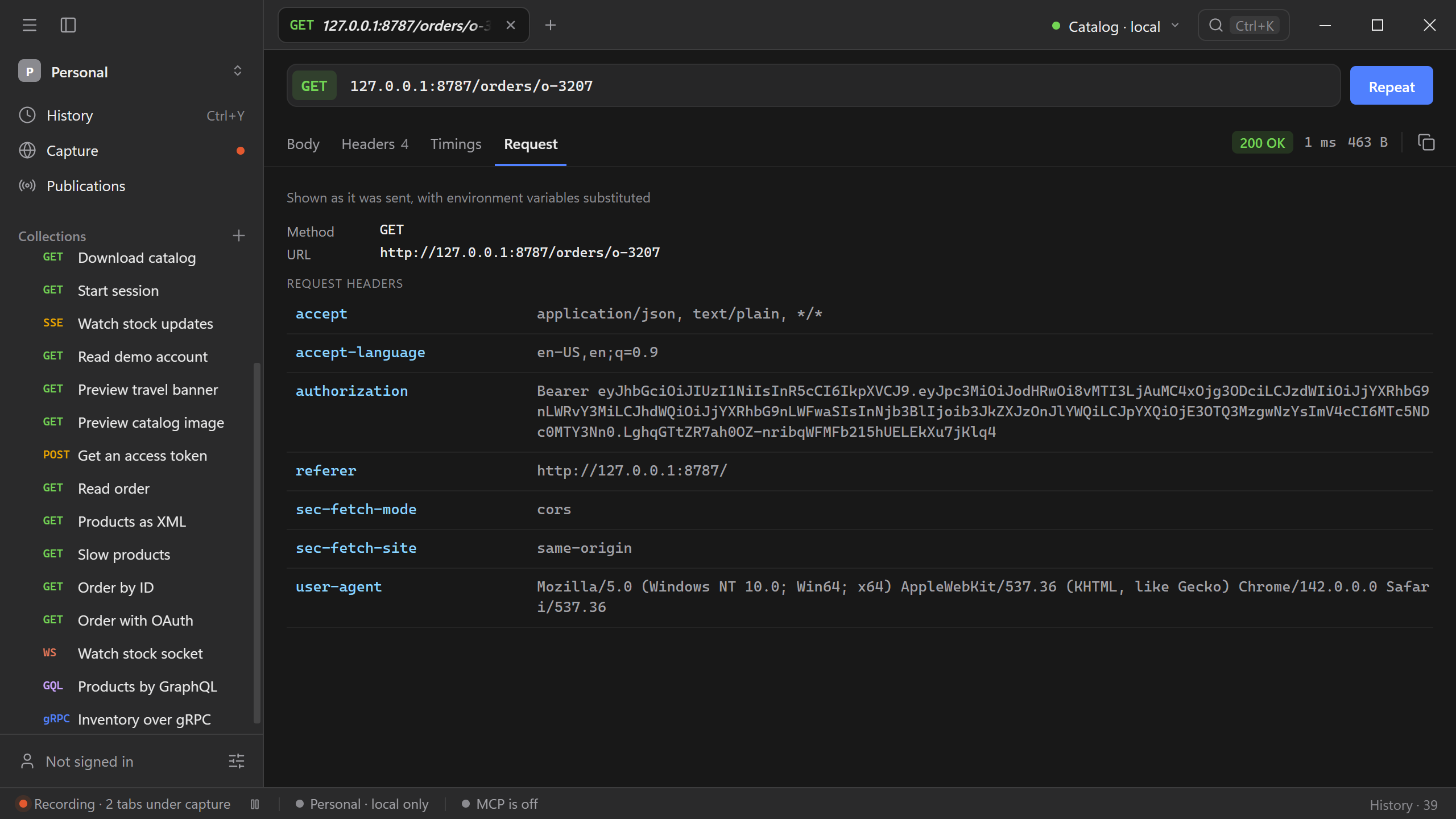
Select a row to open the exchange in its own tab. Body, Headers, and Timings describe the response as in the response inspector. Request shows the method, URL, request headers, and body exactly as the browser sent them, including cookies and authorization.
Send it again
Select Repeat to open the captured request as a new, editable request. It keeps the method, URL, headers, and body that the browser sent. Change what you need, then select Send.
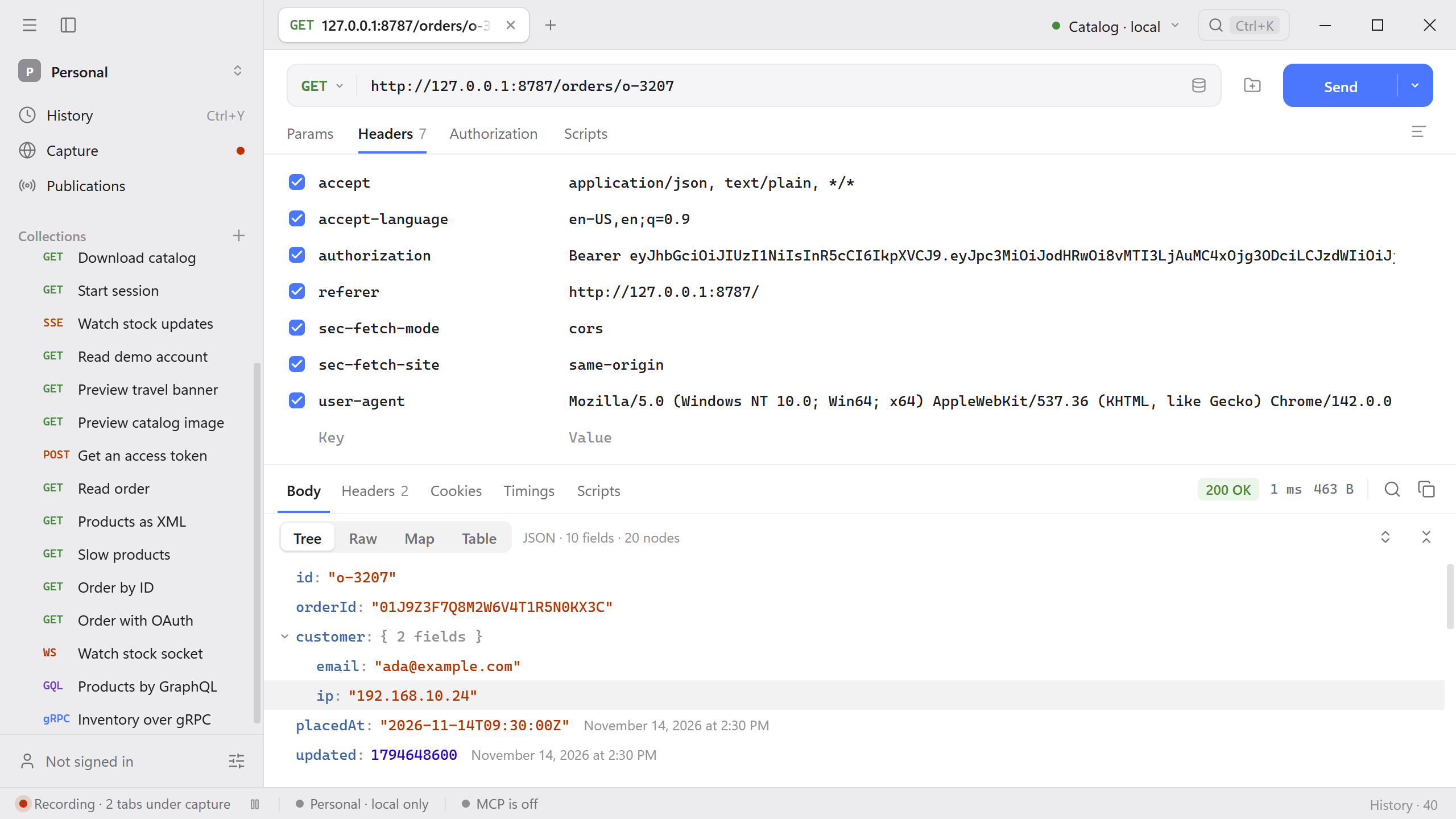
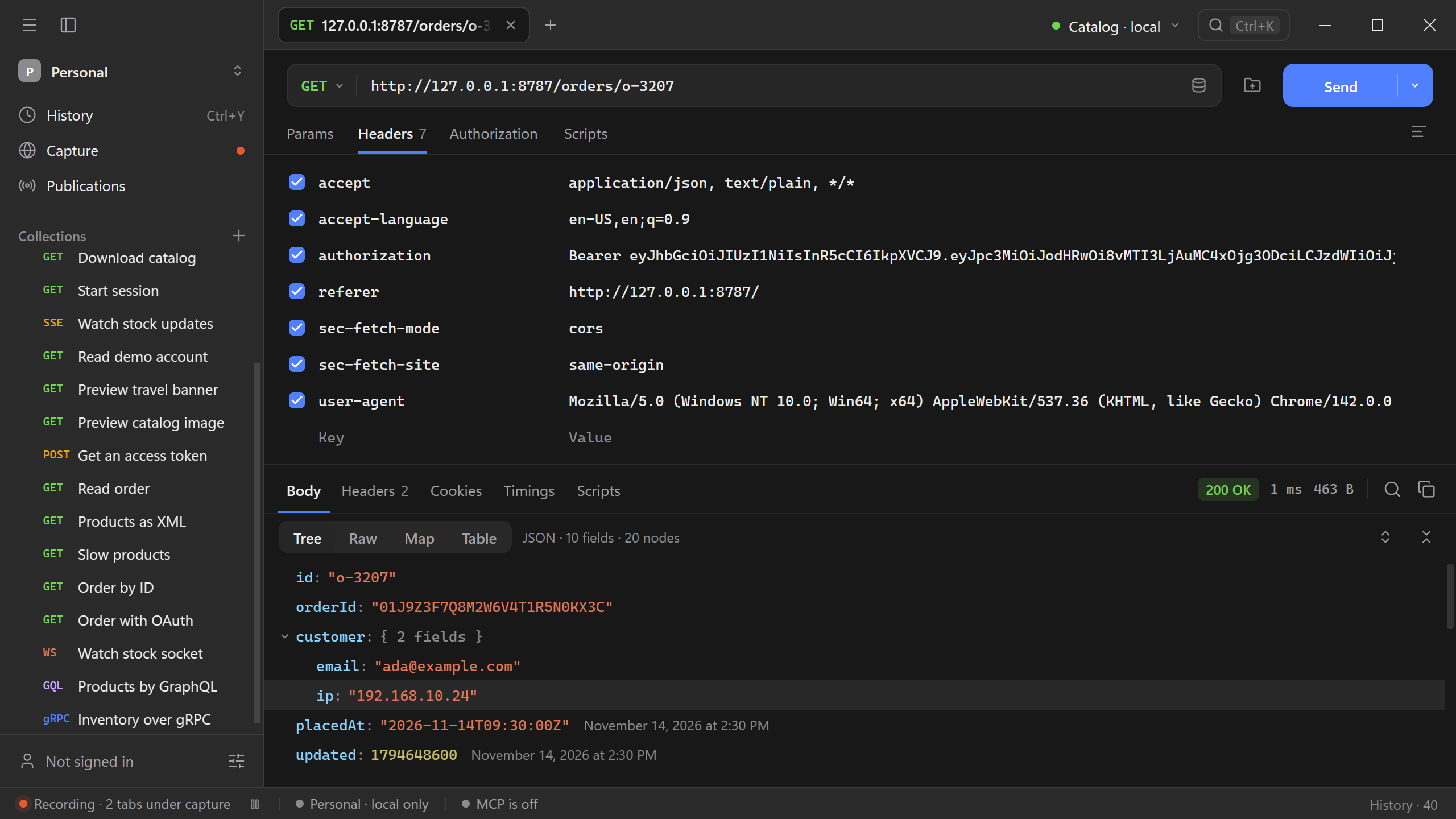
Sending it again calls the original API with the original credentials. For a request that creates or changes data, point it at a test environment first. To keep it, save it to a collection with Ctrl+S (Cmd+S on macOS) and replace tokens with variables.
Pause capture
Pause all stops capture in every armed tab of every connected browser; select it again to resume. The menu next to it can also pause or resume only the tab chip you selected. A paused tab stays in the chip list with the word paused. You can also pause from the status bar.
Capture filters
Select Edit capture rules at the bottom of the page, or open Settings → Browser extension.
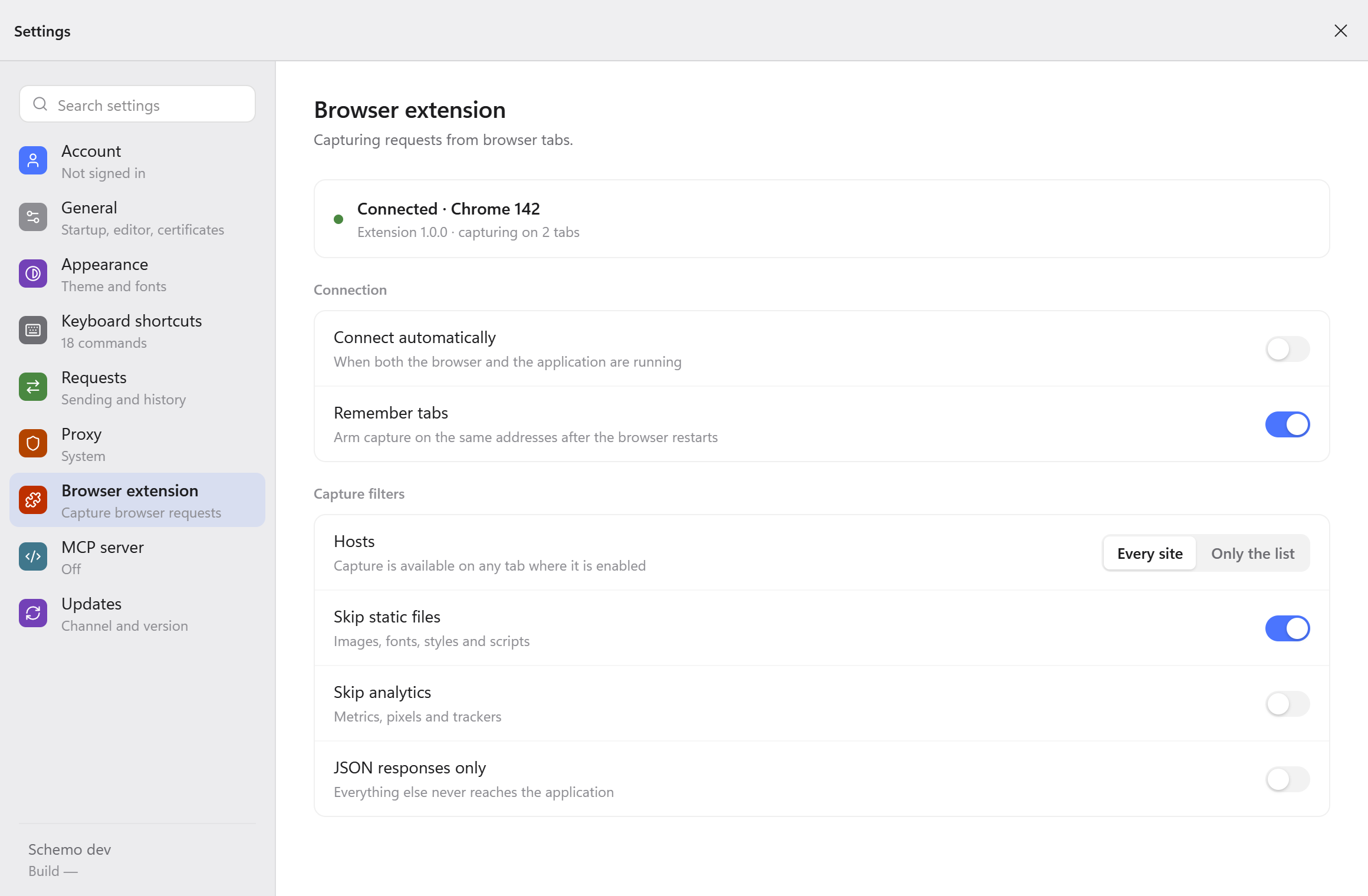
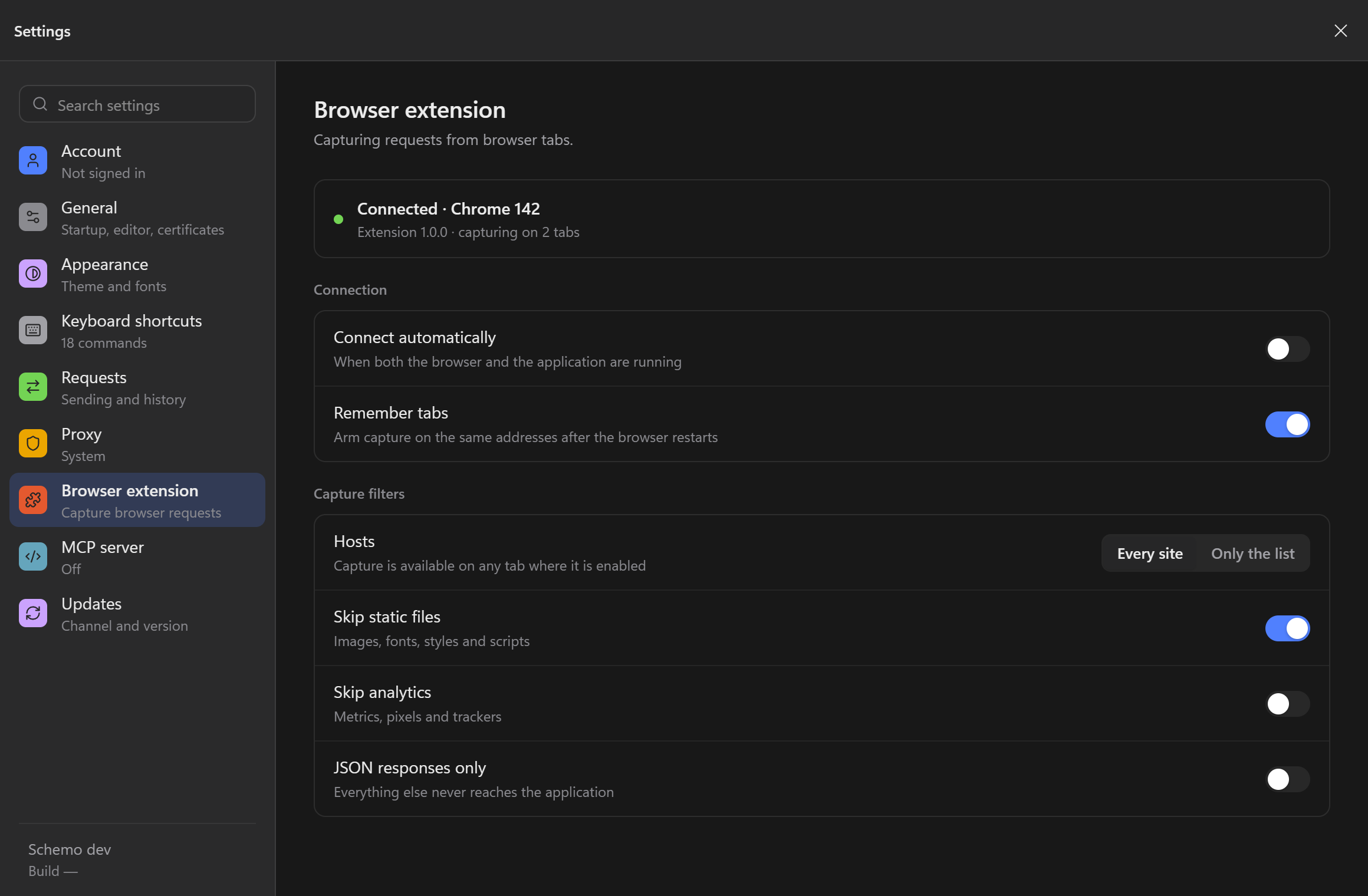
The status at the top shows the connected browser, the extension version, and how many tabs are under capture.
| Setting | Effect |
|---|---|
| Connect automatically | The extension connects whenever both the browser and Schemo are running. |
| Remember tabs | After a browser restart, capture is armed again on the same addresses. |
| Hosts | Every site allows capture on any armed tab. Only the list limits it to the addresses you enter, such as api.example.com or *.example.com. |
| Skip static files | Leaves out images, fonts, style sheets, and scripts. |
| Skip analytics | Leaves out metrics, pixels, and trackers. |
| JSON responses only | Leaves out every response that is not JSON. |
Requests that the rules leave out are dropped in the browser and never reach Schemo. The bar at the bottom of Capture summarizes the current rules.
Troubleshoot capture
- If Capture keeps showing Waiting for capture, check that Schemo is running, that the extension is installed in the browser you are using, and that capture is armed for the tab.
- If you switched from a development or test copy of Schemo, quit that copy and open the installed app. This refreshes the extension’s native-messaging registration for the installed client. Reopen the extension toolbar control and check Settings → Browser extension for the connection.
- If a request is missing, check the capture rules: the host list, static files, analytics, and JSON-only filters drop requests before they arrive.
- Capture covers the requests the page makes. Pages the browser itself shows, such as
chrome://pages and extension stores, cannot be captured.
See Troubleshooting for connection problems.