
MCP
Connect an AI agent to Schemo and choose the workspaces and actions it can access.
Schemo runs a local MCP server that AI agents such as Claude Desktop and Cursor can connect to. An agent can read your workspaces, collections, and requests. If you allow it, the agent can also send requests and edit saved data.
Turn on the server
- Open Settings → MCP server. You can also select the MCP item in the status bar at the bottom of the window.
- Turn on the switch next to The MCP server is off. The status changes to Running · 127.0.0.1:9300.
- Under The agent’s configuration, select Copy and paste the configuration into your MCP client.
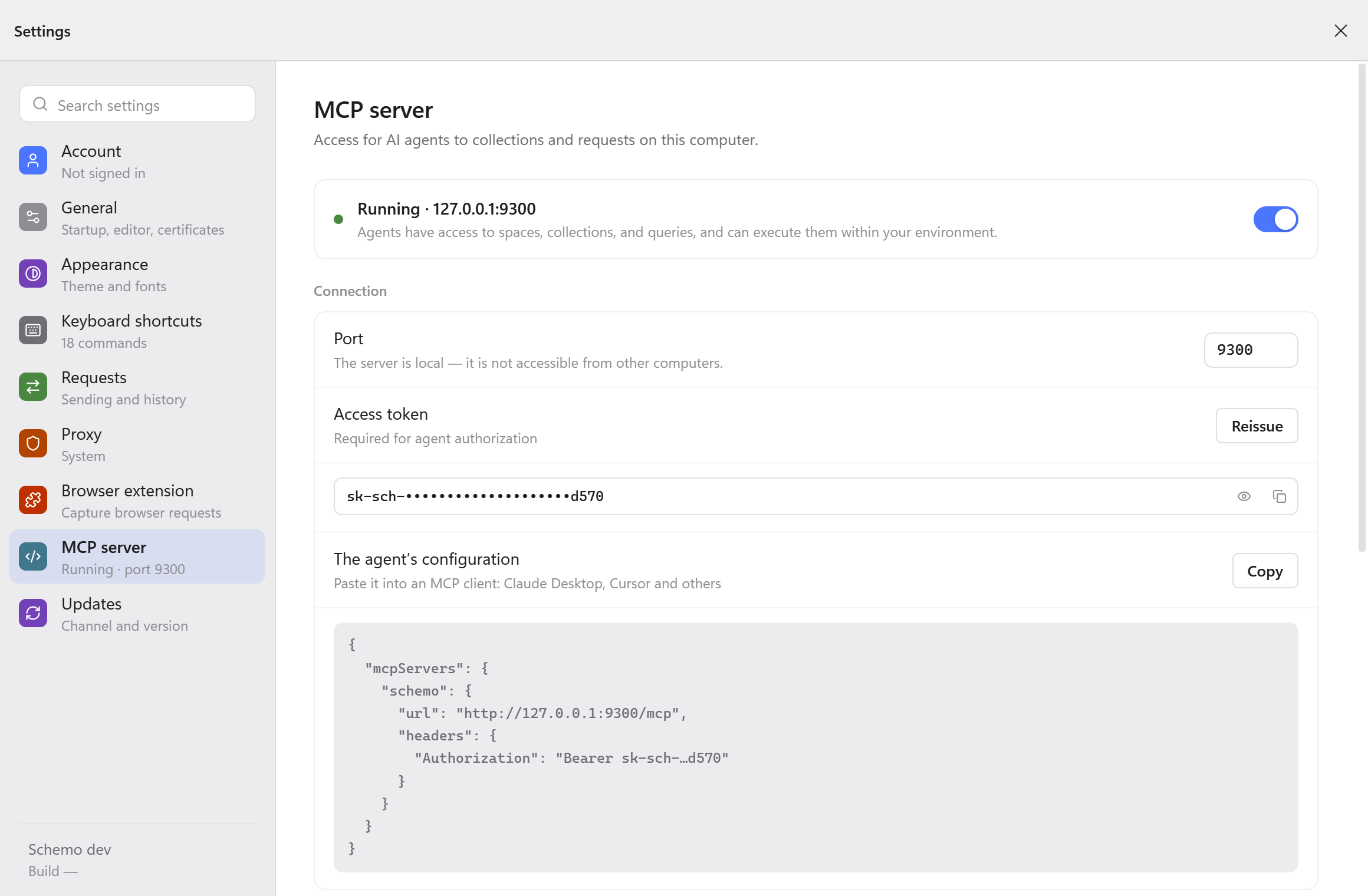
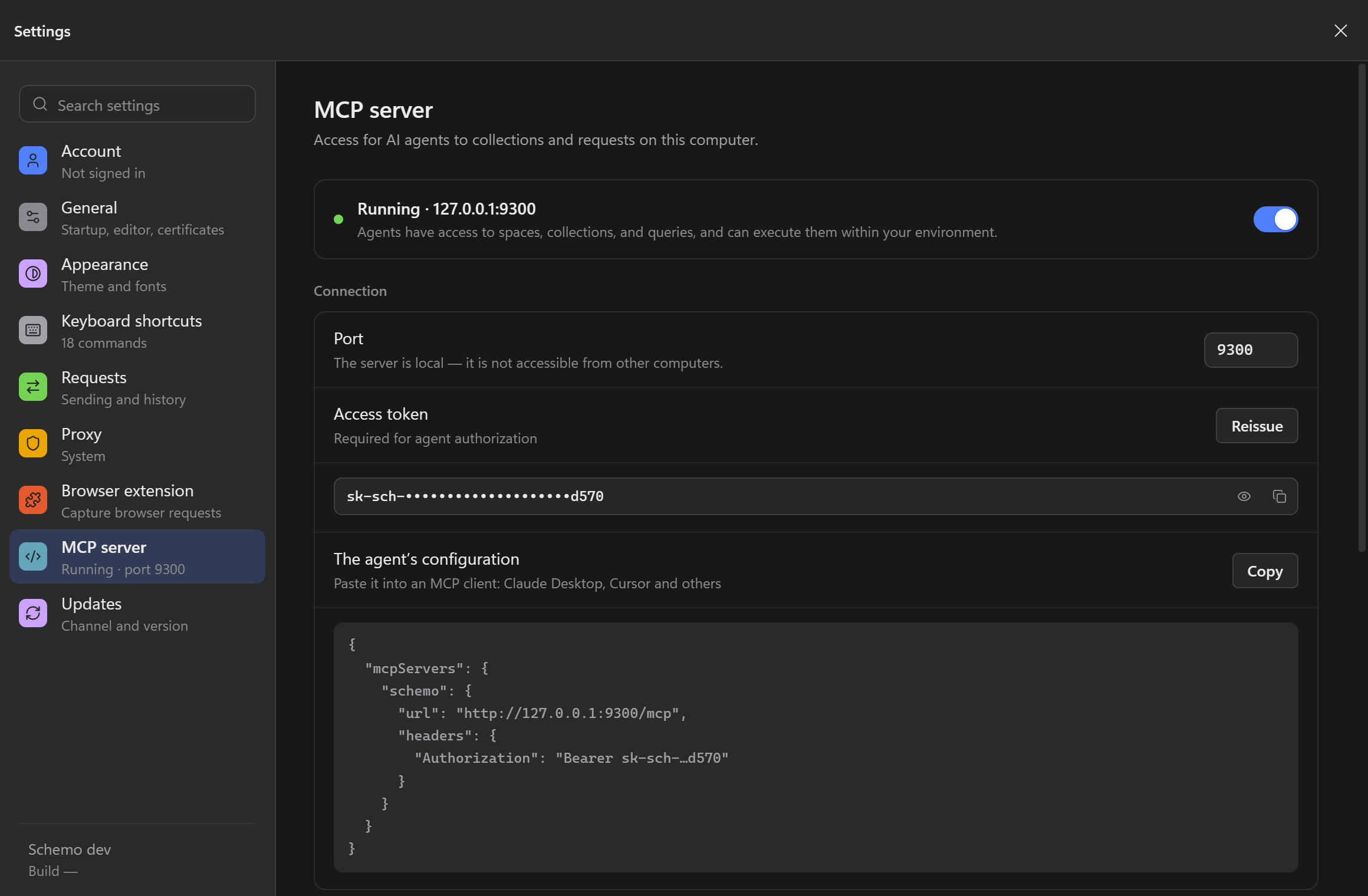
The configuration points the client at http://127.0.0.1:9300/mcp and adds the access token as a Bearer header:
{
  "mcpServers": {
    "schemo": {
      "url": "http://127.0.0.1:9300/mcp",
      "headers": {
        "Authorization": "Bearer <access token>"
      }
    }
  }
}
The server accepts connections from this computer only. If another application uses port 9300, the status shows The MCP server did not start. Enter another Port and copy the configuration again.
Access token
The access token lets an agent call the server. It belongs to this installation. Select the eye icon to reveal it, or the copy icon to copy it.
Select Reissue to replace the token, for example if the configuration was shared by mistake. Agents that use the old token lose access until you paste the new configuration into them.
Permissions
| Setting | Effect |
|---|---|
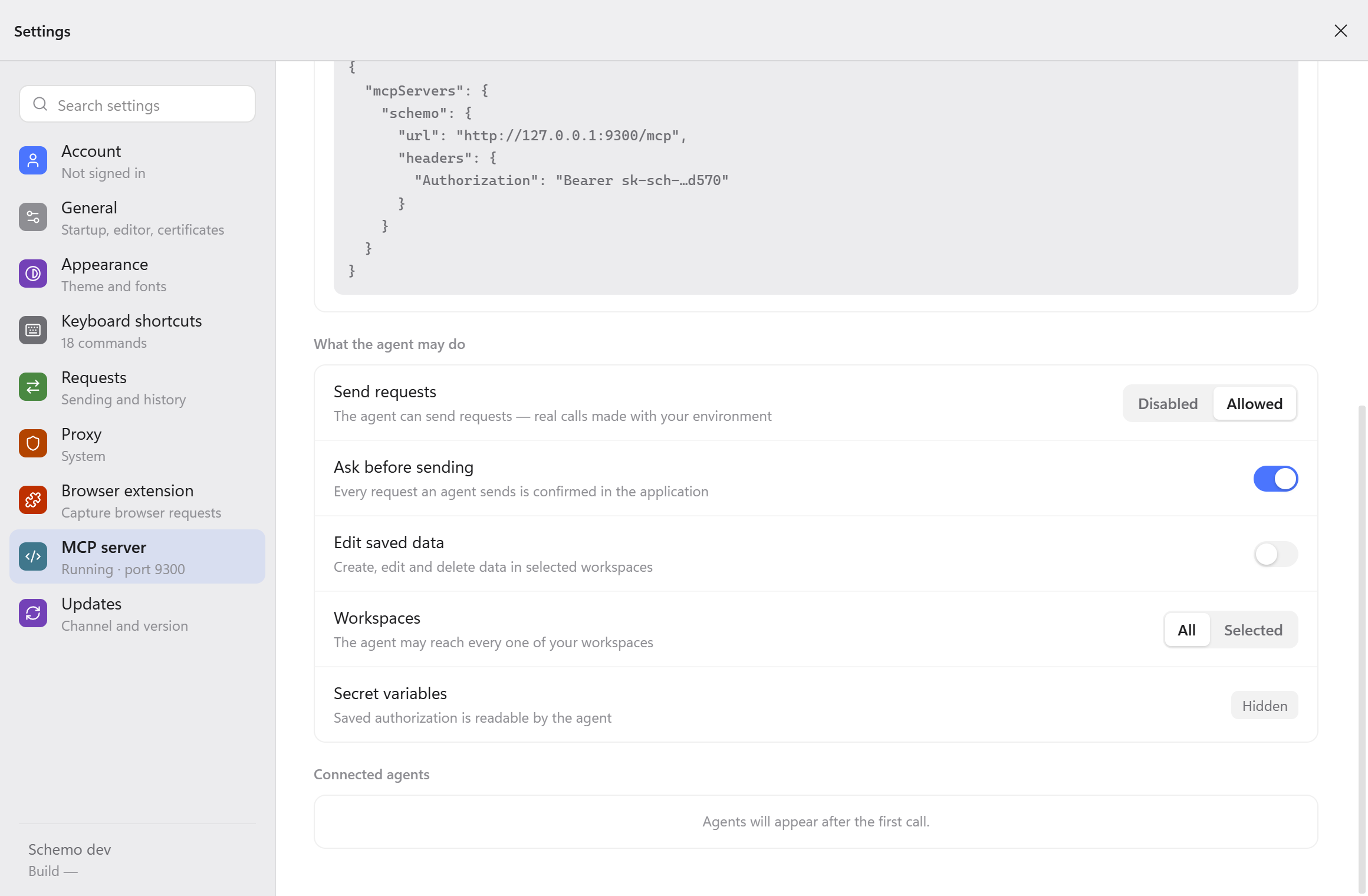
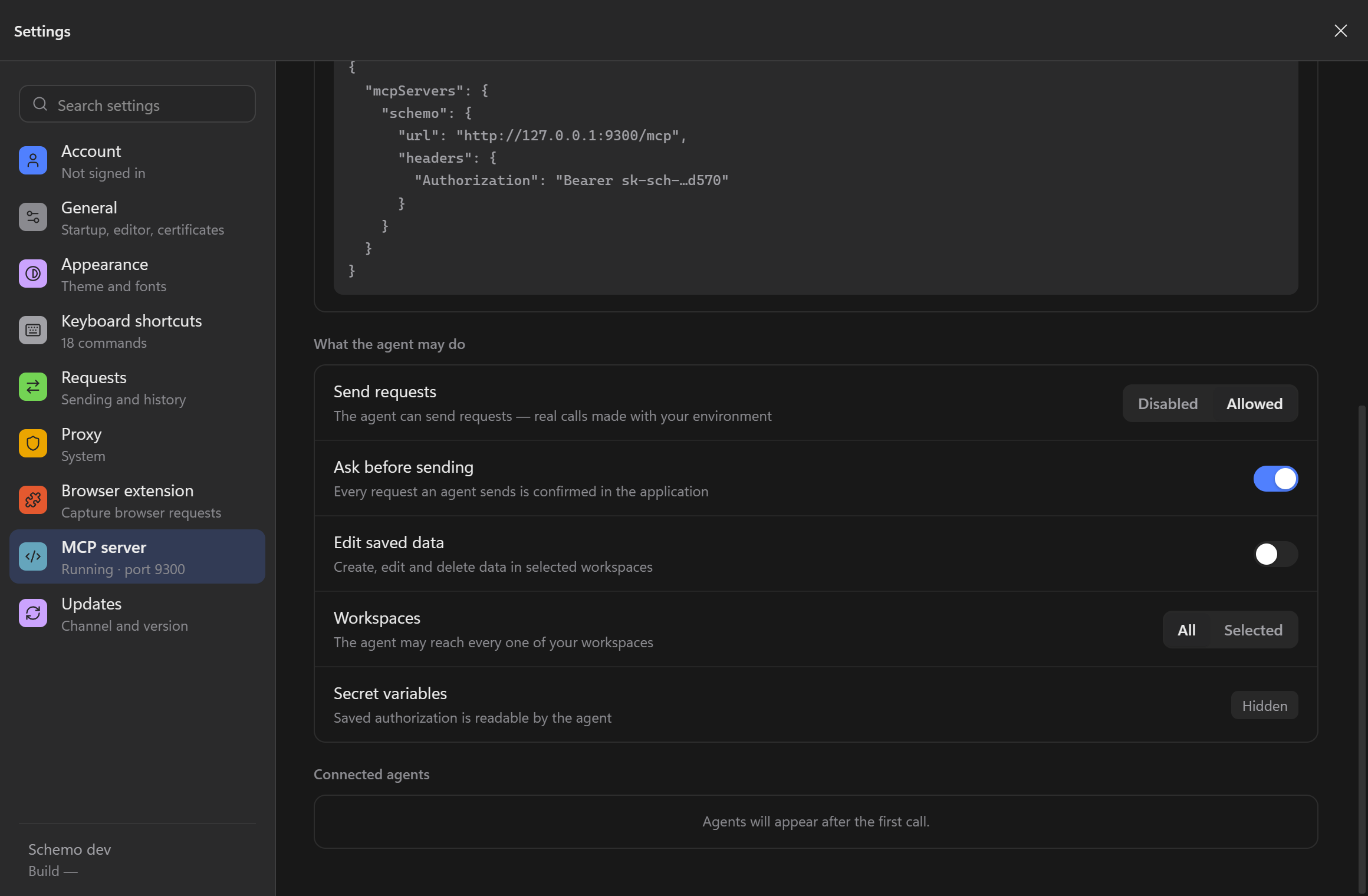
| Send requests | Disabled lets the agent read saved data without sending anything. Allowed lets it send real requests with the selected environment and authorization. |
| Ask before sending | Schemo asks you before each request an agent sends. The prompt shows the agent’s name, method, and address. Select Send or Do not send. |
| Edit saved data | Lets the agent create, edit, move, and delete collections, folders, saved requests, environments, and variables in the workspaces it can reach. The agent does not send what it saves. |
| Workspaces | All gives the agent every workspace. Selected limits it to the workspaces you pick. |
| Secret variables | Always Hidden: the agent never receives the values of secret variables. |
Credentials typed directly into a request’s Authorization fields are saved data, and an agent can read them. Keep keys and tokens in secret variables and reference them from the request.
Connected agents
Connected agents lists each agent after its first call, with the time of its last call and the number of calls today. Select Disconnect to close an agent’s connections. The agent appears again if it calls the server once more; reissue the token to keep it out.
Requests that agents send appear in History. Choose the MCP filter to see only those requests.
See the MCP tool and permissions reference for the full list of tools.