
GraphQL
Load a schema, pick an operation, and send queries or mutations with variables.
Choose GQL in the protocol menu and enter the API’s GraphQL endpoint. Headers and Authorization work as they do for HTTP. Schemo sends the operation as a JSON POST with query, variables, and, when known, operationName.
Load the schema
Open Schema and select Load from server. Schemo reads the schema through introspection, and Sources shows the server with the time it was read and the number of operations it found.
If the server has introspection turned off, open Import and choose Choose a file or Choose a folder to add schema files (.graphql, .gql, or .graphqls). A request can combine several sources. Select the reload icon to read them all again after the API changes.
The schema is saved with the request, so the operations stay available when the server is offline.
Pick an operation
Open the Operation menu in the address bar. It lists the schema’s Queries and Mutations; type in Find an operation to filter them.
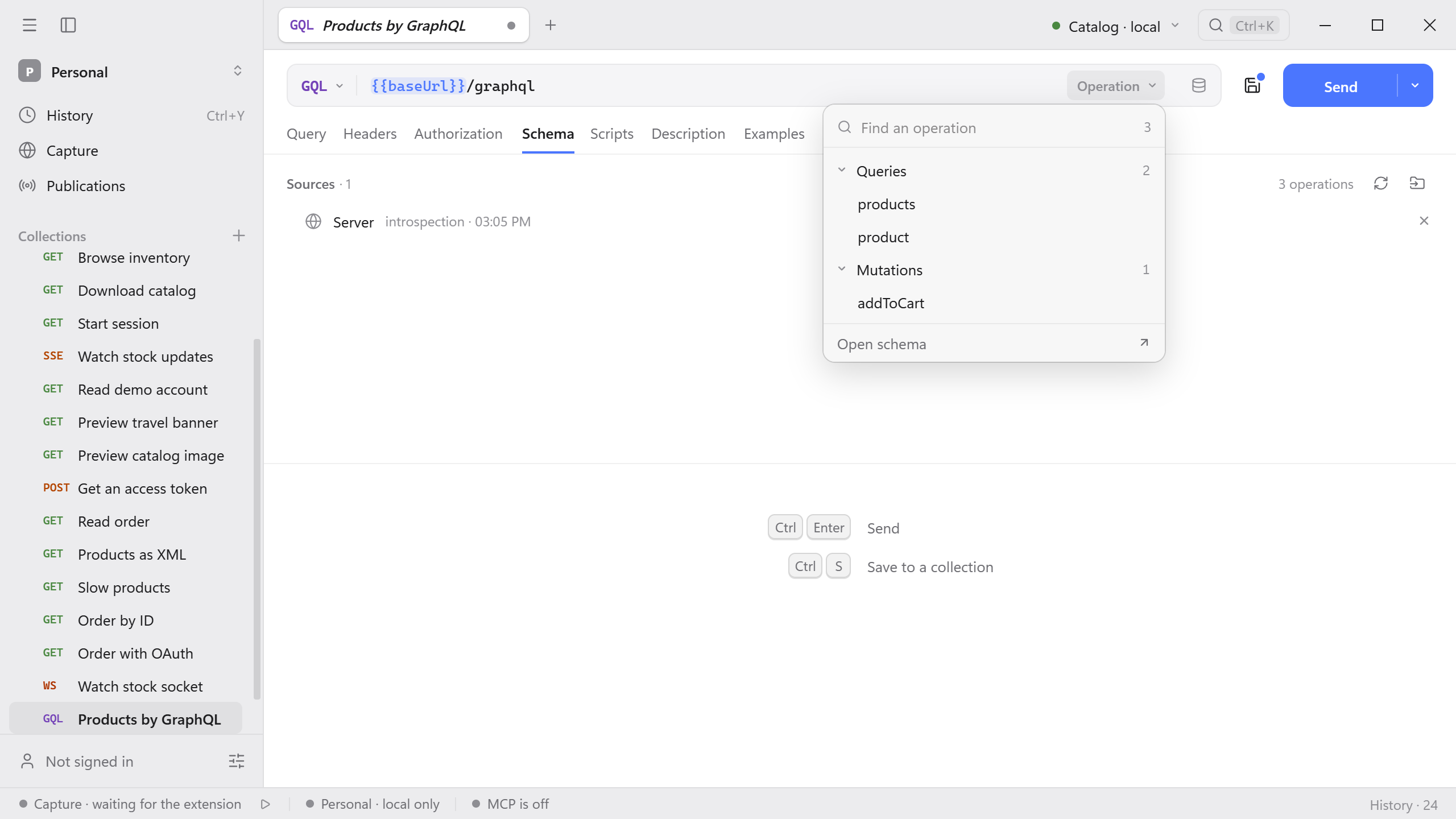
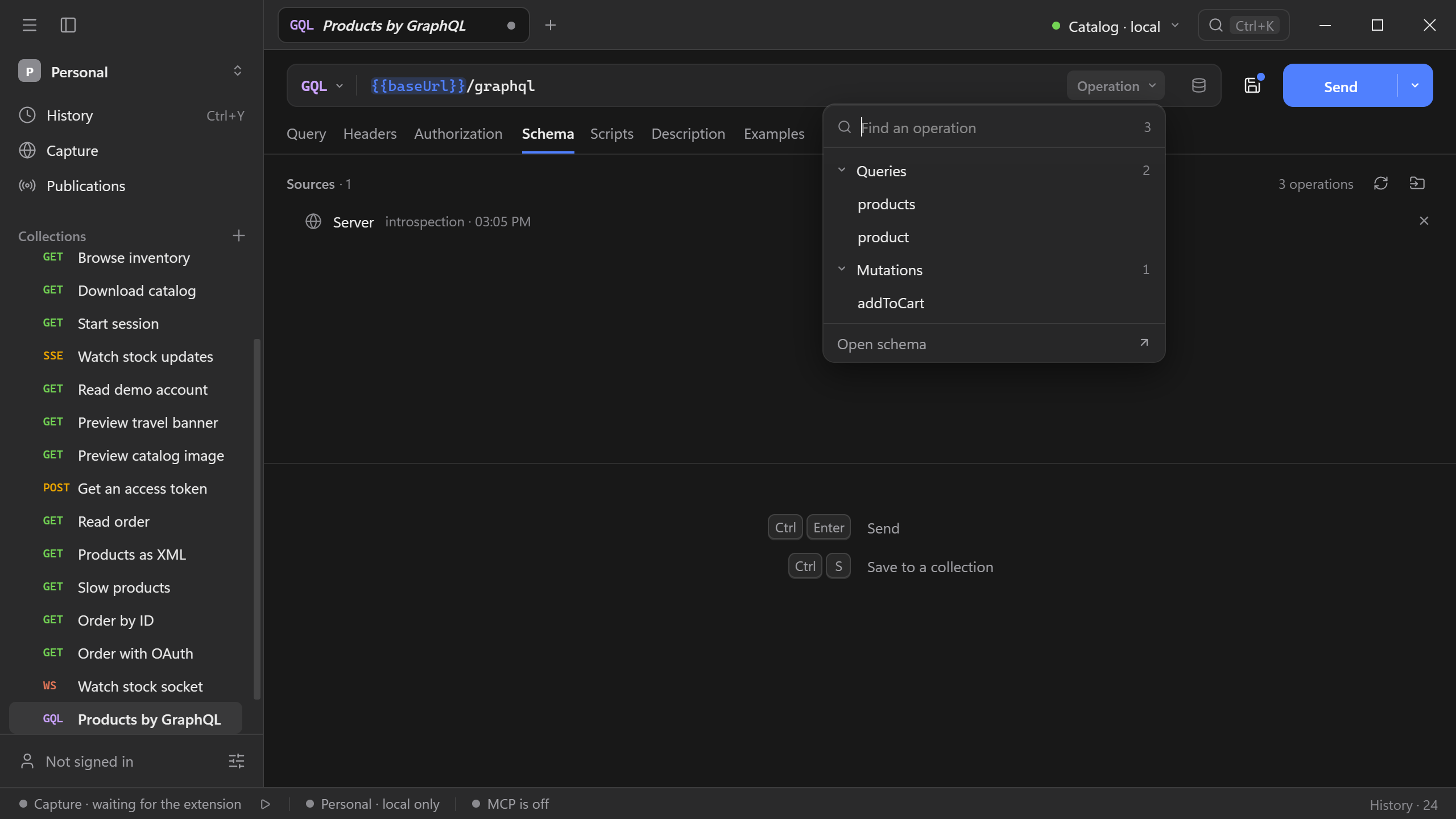
Selecting an operation writes a ready query into Query, with a variable for each argument, optional ones included, and the fields of the result a few levels deep. A type that already appears higher in the selection is not repeated, so related is left out of product. Variables gets a matching JSON object to fill in. Open schema at the bottom of the menu opens the Schema tab.
Catalog example
The Catalog API serves GraphQL at /graphql.
Start the Catalog API, create a GQL request to
{{baseUrl}}/graphql, and select Catalog · local.In Schema, select Load from server. The menu in the address bar now offers
products,product, andaddToCart.Pick
product. Open Variables and enter the ID:{ "id": "p-101" }Select Send. The response holds the product under
data.product.
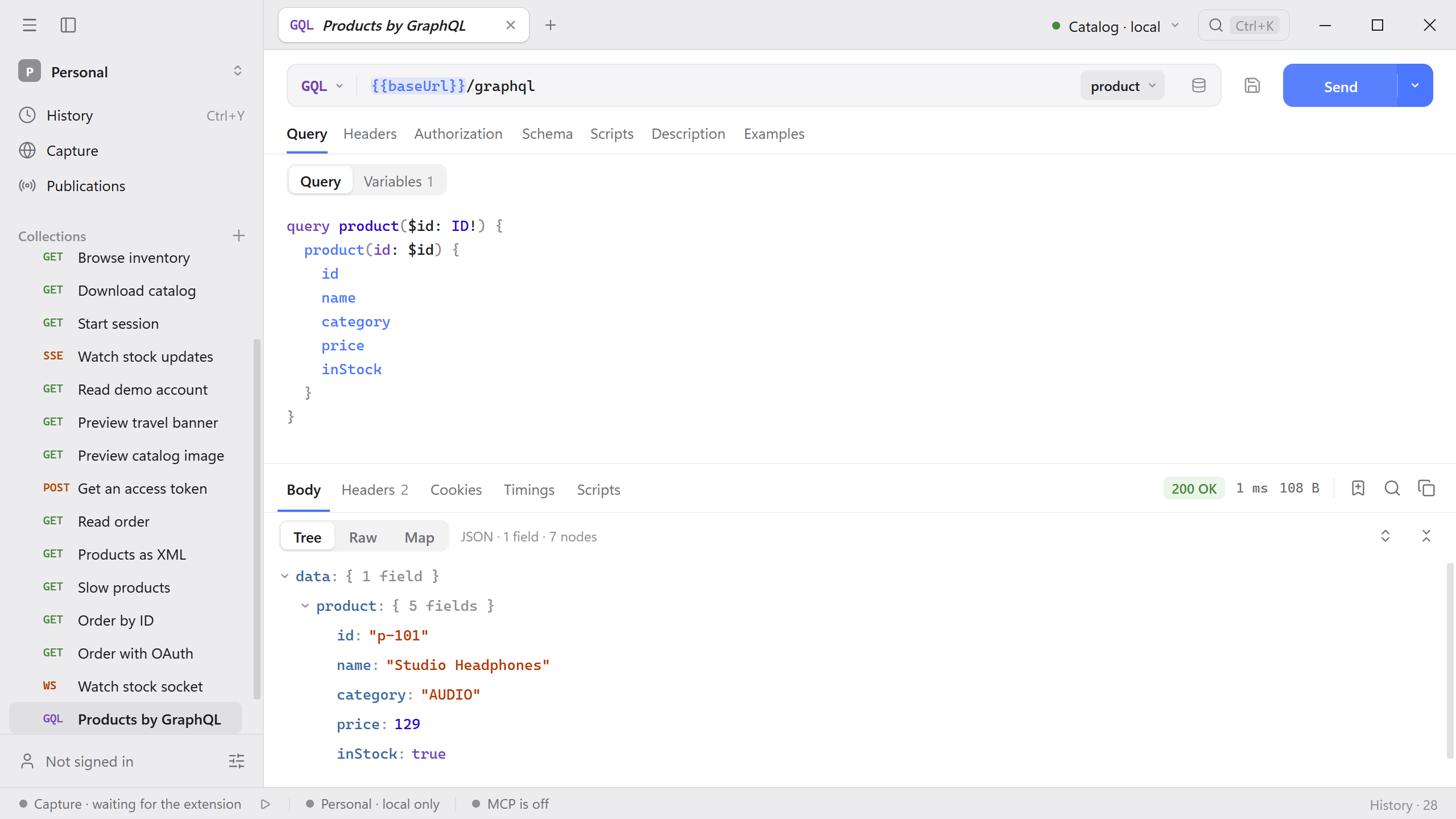
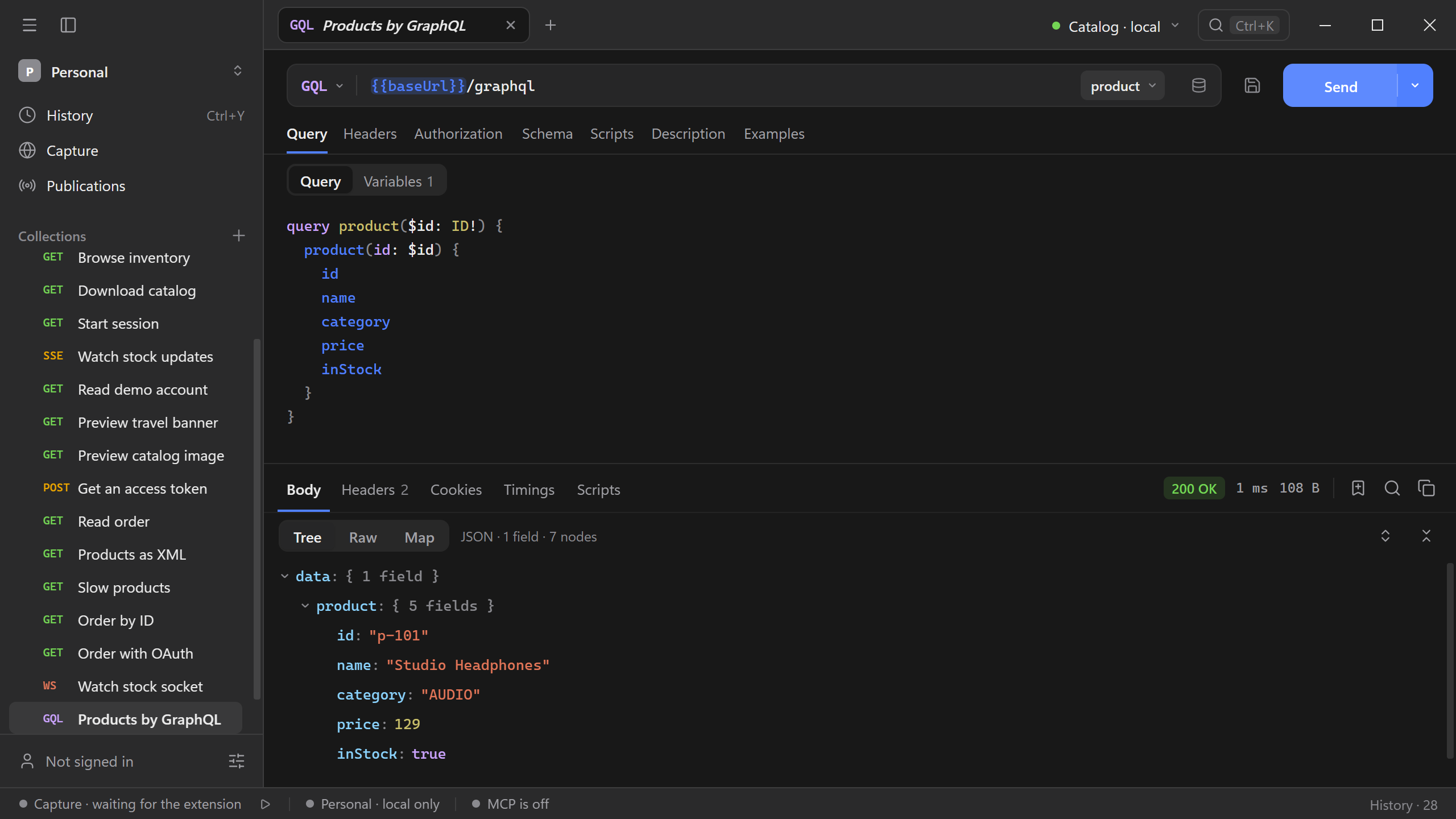
To filter a list, use an enum value such as products(category: AUDIO). Add related { name } to a product to follow a nested field.
Read errors
GraphQL reports most failures in the body, not in the HTTP status. A response can be 200 OK and still carry errors, with data set to null or partly filled.
To see this, pick addToCart and send it for a product that is out of stock:
{ "productId": "p-103", "quantity": 1 }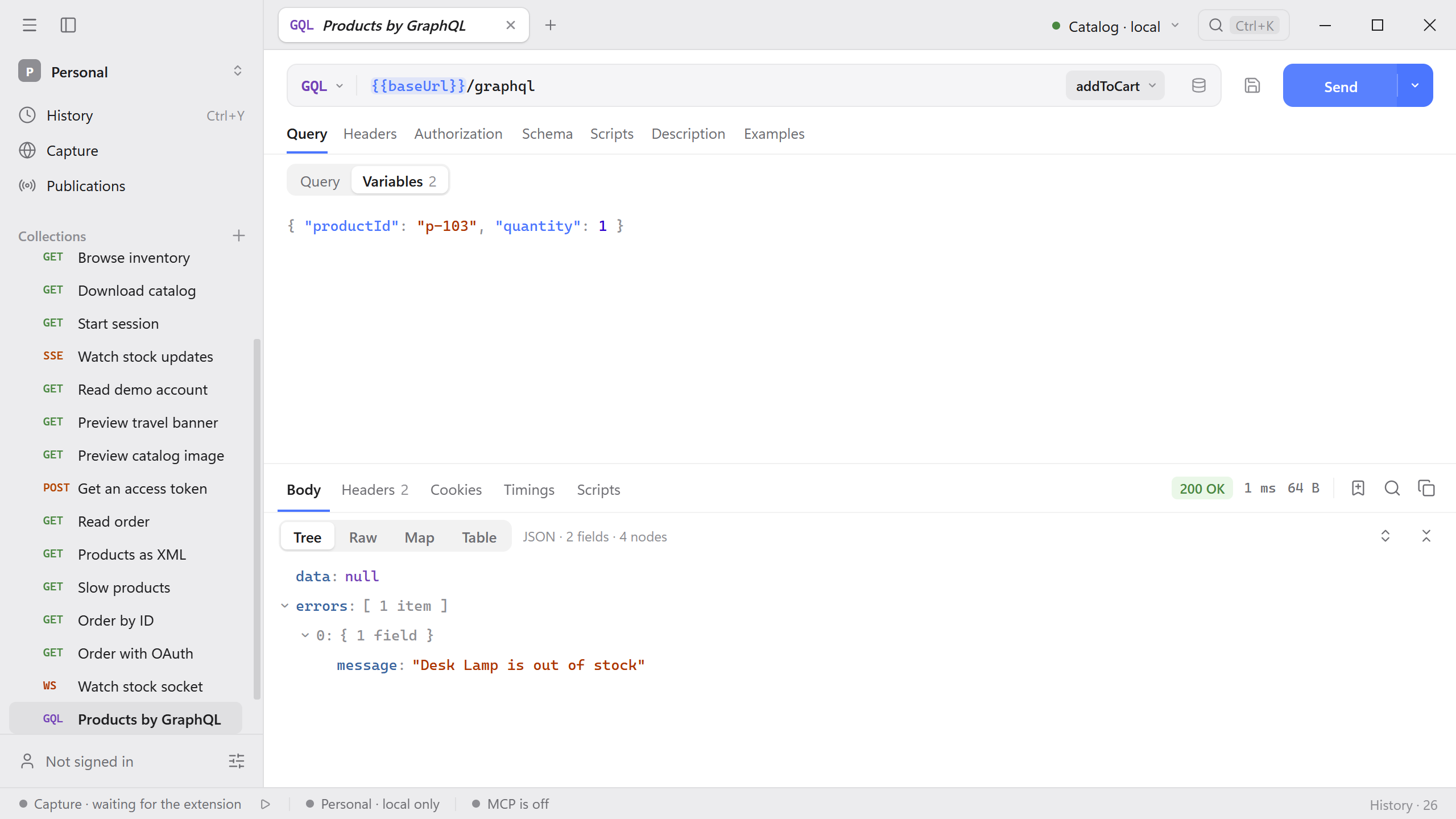
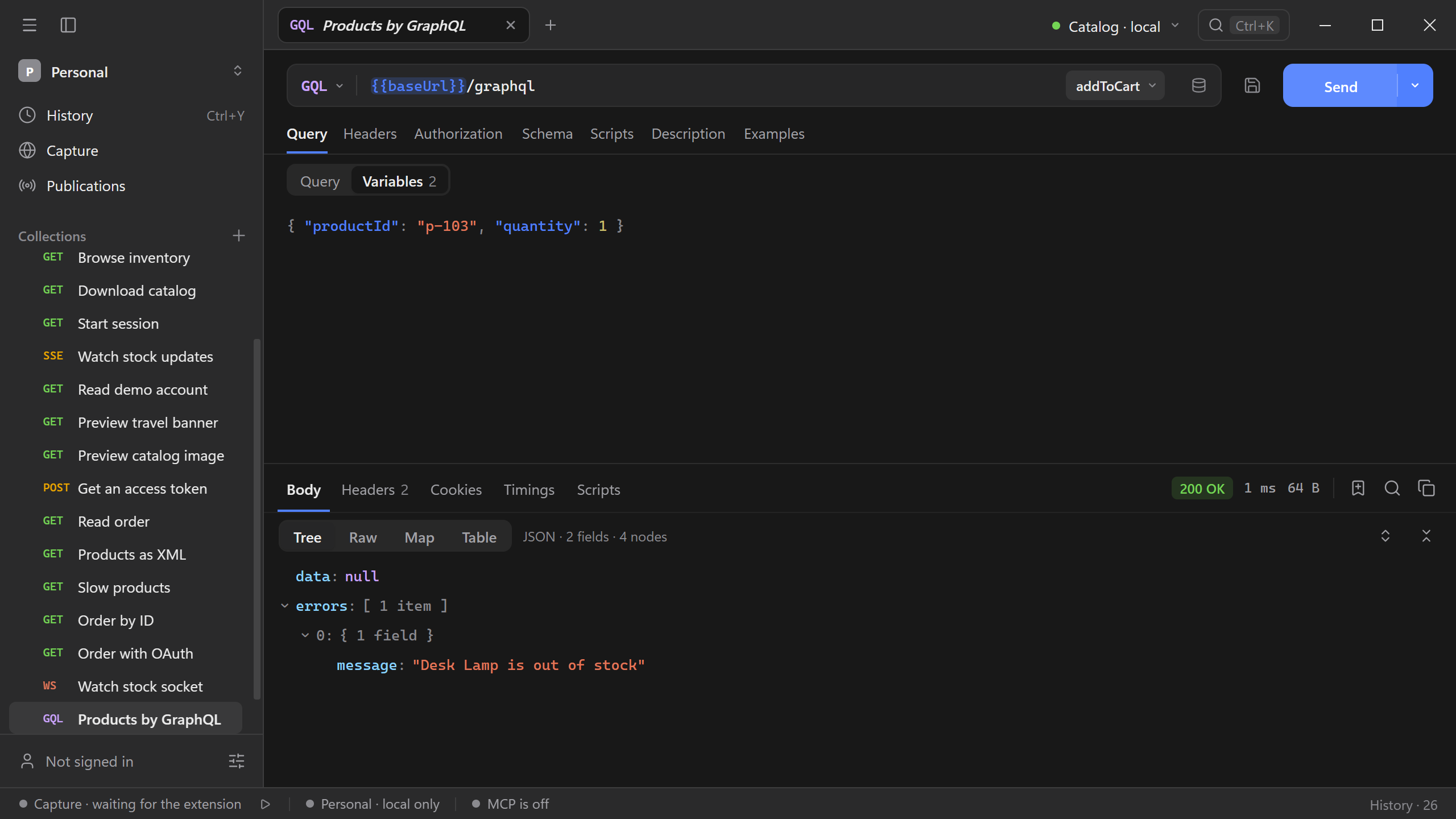
If the response reports an unknown field or a missing variable, compare the query with the loaded schema. Variable names in Variables go without the leading $, and the object must be valid JSON; the editor marks it if it is not.
Saved operations
Schemo sends the document as written. A document with several operations needs an operation name, which most servers require to choose one, and Schemo does not ask for it. Keep one operation in each request, and use fragments in the same document as needed.
The Operation menu lists queries and mutations only. Subscriptions are not supported.