
Import a cURL request
Open a cURL command in the editor and save the request for reuse.
Paste a cURL command into Schemo to inspect and edit the request before you send it.
Paste a GET request
Open a new HTTP request tab. Paste this command into the address field.
curl 'https://jsonplaceholder.typicode.com/posts?userId=1' -H 'Accept: application/json'Check that the method is GET, Params contains
userId=1, and Headers containsAccept: application/json.Select Send and confirm that the response contains an array of posts.
Import a JSON payload
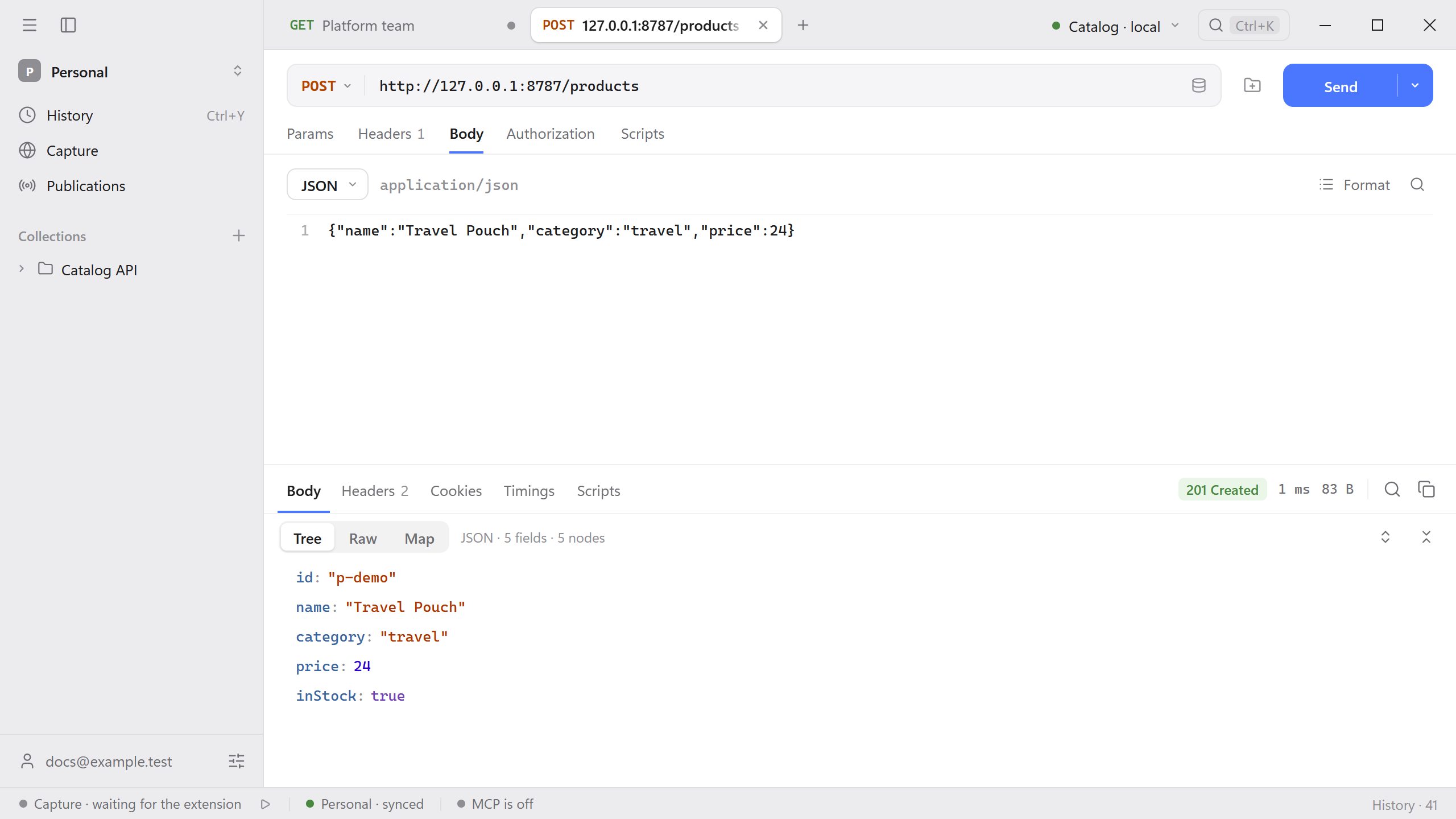
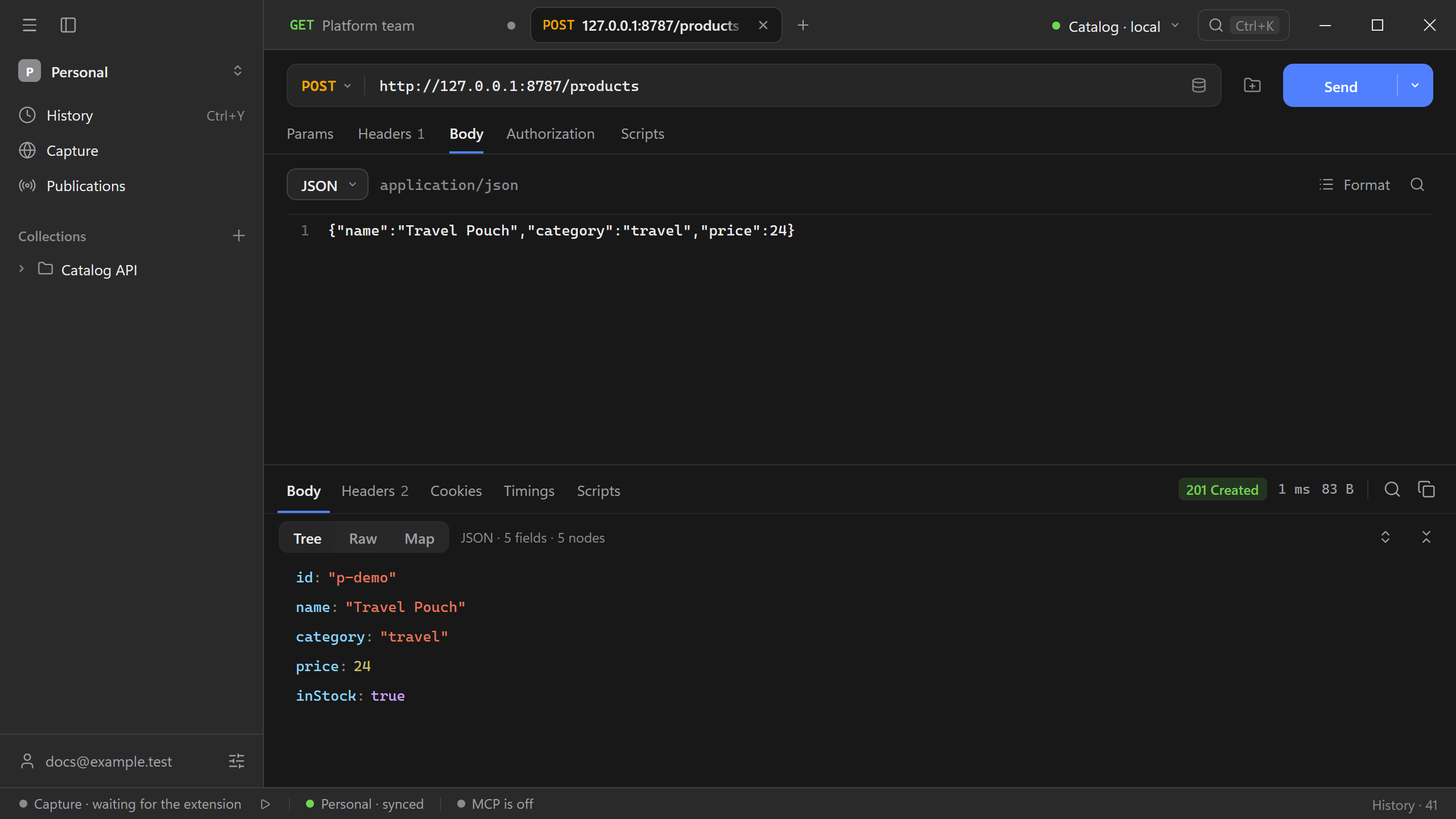
Start the Catalog API and paste this complete command into a new request’s address field. Paste it into Schemo as written.
curl -X POST 'http://127.0.0.1:8787/products' -H 'Content-Type: application/json' -d '{"name":"Travel Pouch","category":"travel","price":24}'Check that the method is POST, Headers includes Content-Type: application/json, and Body contains the three product fields. Select Send to get 201 Created and the ID p-demo.
If you have several commands, use Import → cURL to paste them together and choose where to save the resulting requests. See Import and export.
Keep the request
Select the save icon beside Send and choose a collection. Replace a hard-coded API origin with {{baseUrl}} if you send the request to several environments. If the command carries a credential, move it into a secret variable before exporting or sharing the request. See Variables and environment overrides.
Open the arrow next to Send and choose cURL to copy the current request back as a command. Review the copy before running or sharing it, especially if Schemo reports omitted values.