
Upload a file with form data
Send a file and a text field in one multipart request and check what the server received.
Use Form data when an endpoint expects a file alongside text fields, such as a product image with a label. This example uses the Catalog API, which reports the filename and byte count it received.
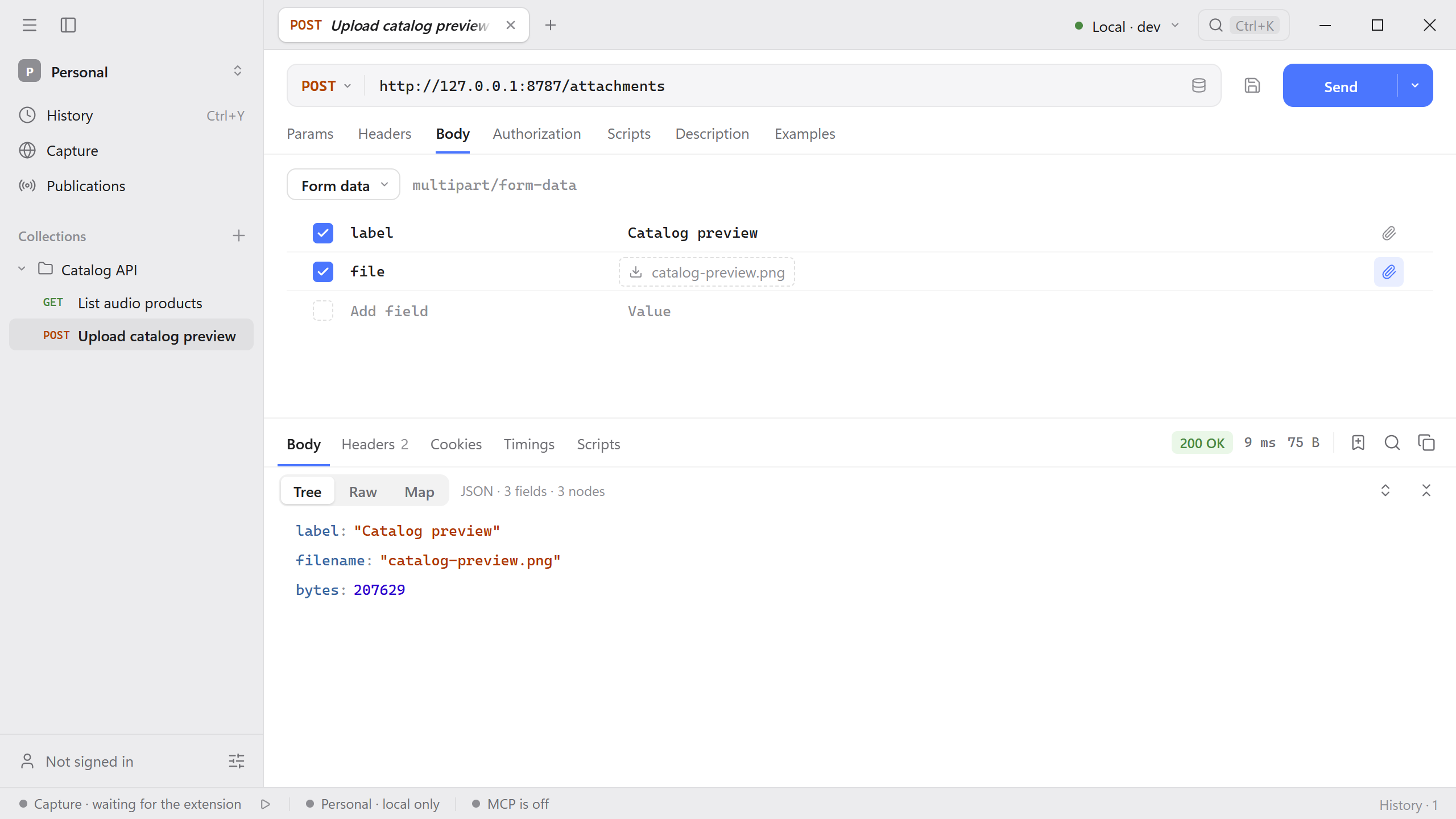
Build the form
- Start the Catalog API and keep catalog-preview.png handy.
- Open an HTTP request. Set the method to POST, enter
http://127.0.0.1:8787/attachments, and select Body → Format → Form data. - Add a row named
labeland enterCatalog previewas its value. - Add another row named
file. Use Make it a file field on that row, select Choose a file, and pickcatalog-preview.png. Keep both rows enabled. - Select Send. Schemo fills in the
Content-Typeheader including the multipart boundary. If you copied the request from somewhere, remove any hand-writtenContent-Typefirst so the generated one can take effect.

Check the upload
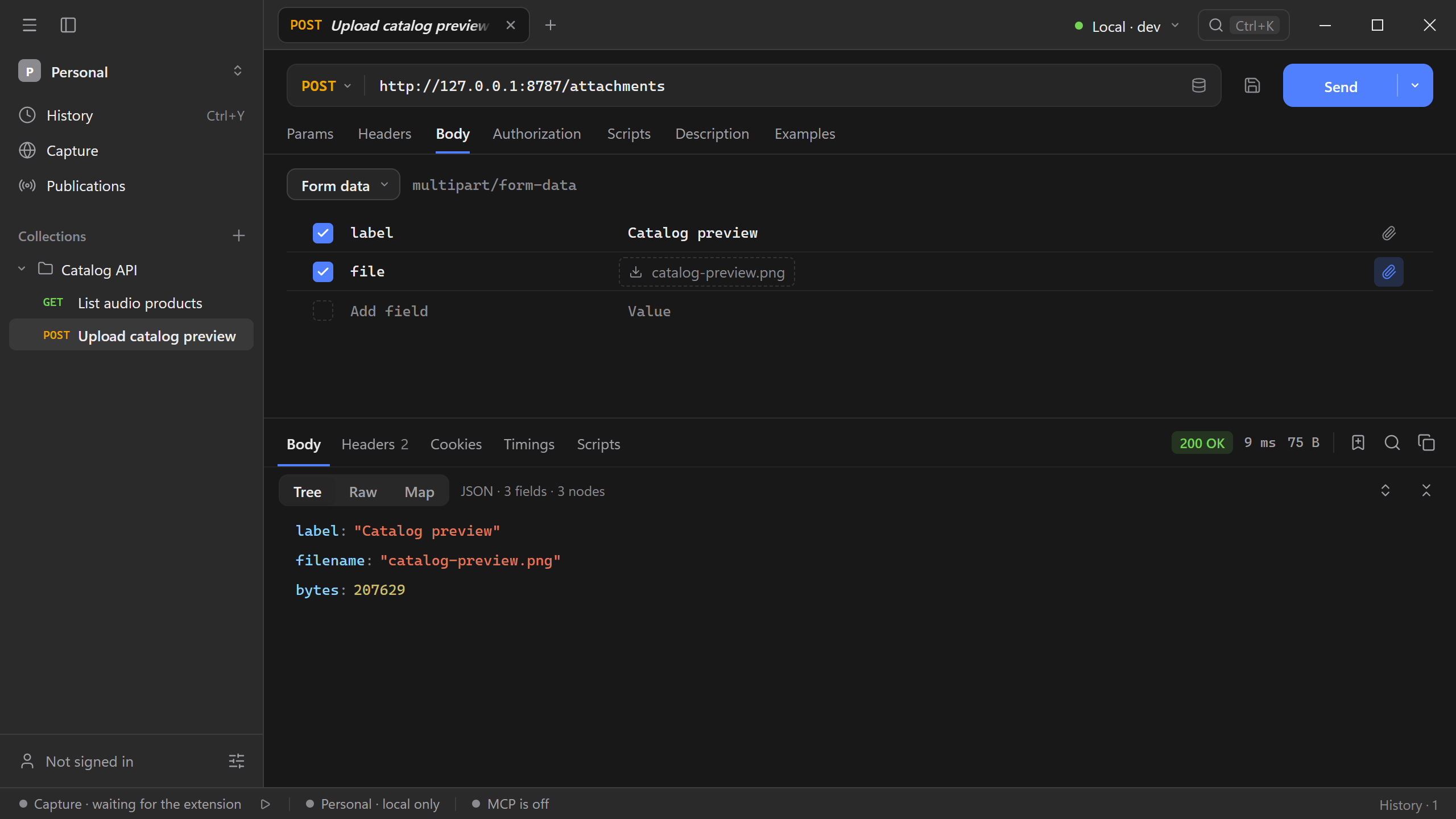
In Body → Tree, look for 200 OK, the label, the filename, and 207629 bytes. The demo reports the upload and discards the file.
If the demo returns 400 Bad Request, check the two field names and make sure the second row is a file field with a file selected. On another API, use its documented field names, such as image or attachment. If the endpoint expects the file bytes as the entire body, choose Binary file.